
取扱説明書
Evo 75、Evo 150、Evo 150 DeLorean、Evo 150 SE
はじめにIntroduction
本ガイドは、本製品の設置と使用を可能な限り簡単に行えるよう作成されています。本書の情報は発行時点で正確性を十分に確認しています。ただし、Cambridge Audio は継続的な改良を方針としており、デザインおよび仕様は予告なく変更される場合があります。
This guide is designed to make installing and using this product as easy as possible. Information in this document has been carefully checked for accuracy at the time of publishing; however, Cambridge Audio’s policy is one of continuous improvement, therefore design and specifications are subject to change without prior notice.
本書には著作権で保護された専有情報が含まれます。すべての権利は留保されています。本書のいかなる部分も、製造元の書面による事前の許可なしに、機械的・電子的その他の方法や形式で複製することは禁じられています。すべての商標および登録商標は、それぞれの所有者に帰属します。
This document contains proprietary information protected by copyright. All rights are reserved. No part of this manual may be reproduced by any mechanical, electronic or other means, in any form, without prior written permission of the manufacturer. All trademarks and registered trademarks are the property of their respective owners.
Bluetooth® のワードマークおよびロゴは、Bluetooth SIG, Inc. が所有する登録商標です。Audio Partnership Plc はライセンスに基づいてこれらのマークを使用しています。その他の商標および商号は、それぞれの所有者に帰属します。
The Bluetooth® word mark and logos are registered trademarks owned by the Bluetooth SIG, Inc. and any use of such marks by Audio Partnership Plc is under license. Other trademarks and trade names are those of their respective owners.
Qualcomm は Qualcomm Incorporated の商標であり、米国およびその他の国で登録されています。許諾を得て使用しています。
Qualcomm is a trademark of Qualcomm Incorporated, registered in the United States and other countries, used with permission.
aptX は Qualcomm Technologies International, Ltd. の商標であり、米国およびその他の国で登録されています。許諾を得て使用しています。Qualcomm aptX は Qualcomm Technologies International, Ltd. の製品です。
aptX is a trademark of Qualcomm Technologies International, Ltd., registered in the United States and other countries, used with permission. Qualcomm aptX is a product of Qualcomm Technologies International, Ltd.
StreamMagic は Audio Partnership Plc の商標であり、欧州共同体およびその他の国で登録されています。
StreamMagic is a trademark of Audio Partnership Plc and is registered in the European Community and other countries.
本製品には、GNU Public License バージョン 2 および GNU Lesser Public License バージョン 2.1 の下でライセンスされたソフトウェアが含まれます。当該ソフトウェアのソースコードは次の URL から入手できます: http://gpl.stream-magic.com/
This product contains software licensed under version 2 of the GNU Public License and version 2.1 of the GNU Lesser Public License. The source code for this software is available from: http://gpl.stream-magic.com/
本製品には、Microsoft Corporation が所有し、Microsoft Licensing GP からのライセンスに基づく技術が含まれます。本製品以外での当該技術の使用または配布は、Microsoft Corporation および/または Microsoft Licensing, GP からのライセンスなしには禁止されています。
This product includes technology owned by Microsoft Corporation and under a licence from Microsoft Licensing GP. Use or distribution of such technology outside of this product is prohibited without a license from Microsoft Corporation and/or Microsoft Licensing, GP as applicable.
Spotify ソフトウェアは、次のサードパーティライセンスの対象です: www.spotify.com/connect/third-party-licenses。
The Spotify software is subject to third party licenses found here: www.spotify.com/connect/third-party-licenses .
本製品は AirPlay 2 に対応し、iOS 11.4 以降が必要です。
This product support AirPlay 2 and requires iOS 11.4 or later.
Apple および AirPlay は、米国およびその他の国で登録された Apple Inc. の商標です。
Apple and AirPlay are trademarks of Apple Inc., registered in the U.S. and other countries.
Works with Apple バッジの表示は、そのアクセサリがバッジに記載された技術で動作するよう設計され、Apple のパフォーマンス基準を満たすことを開発者が保証していることを意味します。
Use of the Works with Apple badge means that an accessory has been designed to work specifically with the technology identified in the badge and has been certified by the developer to meet Apple performance standards.
Android、Google Play、および Chromecast built-in のロゴは、Google Inc. の商標です。
Android, Google Play and the Chromecast built-in logo are trademarks of Google Inc.
TIDAL および TIDAL のロゴは、欧州連合およびその他の国における Aspiro AB の登録商標です。
TIDAL and TIDAL logo are registered trademark of Aspiro AB in the European Union and other countries.
MQA および Sound Wave Device は、MQA Limited の登録商標です。© 2016
MQA and the Sound Wave Device are registered trade marks of MQA Limited © 2016.
© Copyright Cambridge Audio Ltd 2026
© Copyright Cambridge Audio Ltd
今後の製品、ソフトウェアアップデート、限定オファーに関する最新情報を受け取るには、https://www.cambridgeaudio.com/register で製品を登録してください。
For upcoming news on future products, software updates and exclusive offers, make sure you register your product at https://www.cambridgeaudio.com/register
このマニュアル内の画像の一部は、元の PDF から自動生成されたものです。自動処理の都合上、製品の細部や配線図などが実際と異なる場合があります。正確な形状・寸法・配線は、実機および製品ページの写真、同梱の正規マニュアル(英語版)をあわせてご確認ください。
EVO 75/150 の同梱品What’s included with the EVO 75/150?
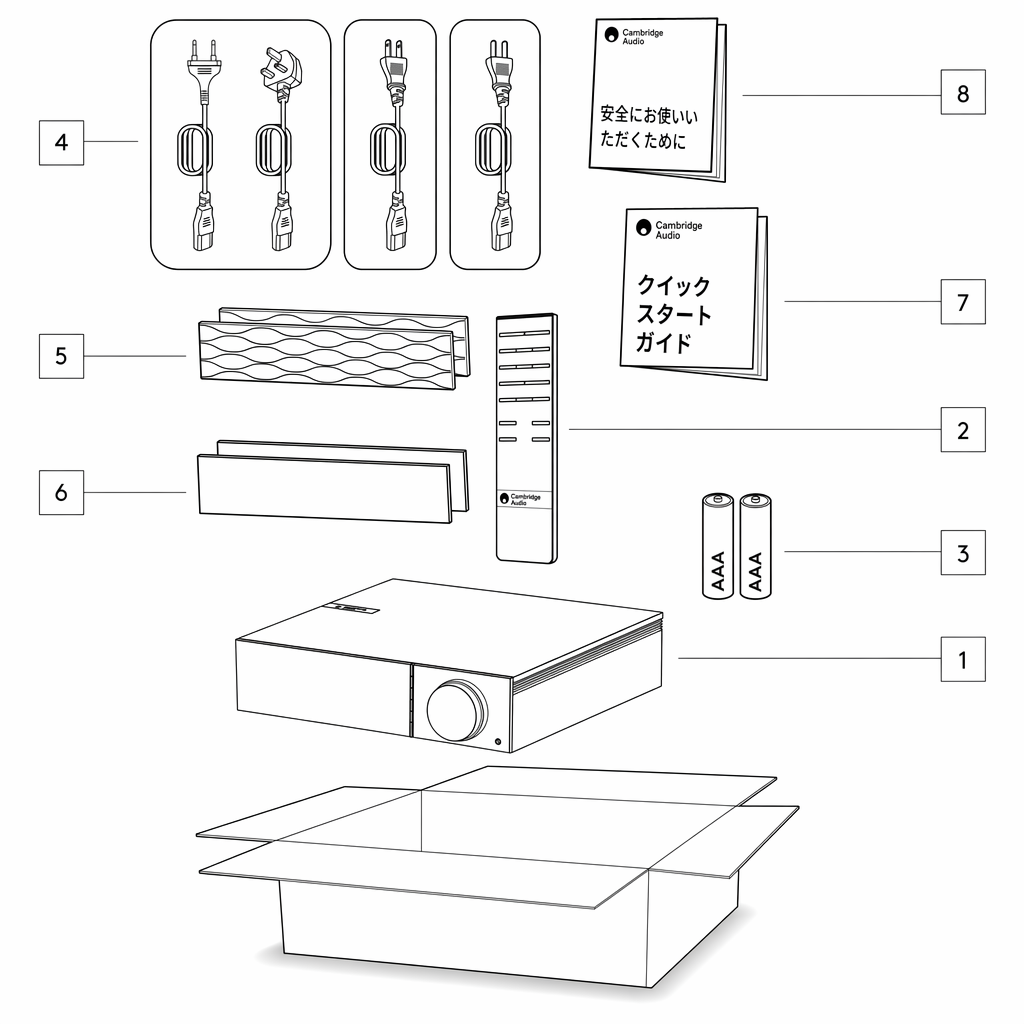
EVO のパッケージには、以下が同梱されています:Inside the box of your EVO you will receive:
1. EVO オールインワンプレーヤー
1. EVO All in One Player
2. リモコン
2. Remote control
3. 単 4 電池 2 本
3. AAA batteries x 2
4. UK 電源コード(EVO を購入した国によって異なります)
4. UK power cord (Depending on which country the EVO was purchased in)
EU 電源コード(EVO を購入した国によって異なります)
EU power cord (Depending on which country the EVO was purchased in)
CU 電源コード(EVO を購入した国によって異なります)
CU power cord (Depending on which country the EVO was purchased in)
CCC 電源コード(EVO を購入した国によって異なります)
CCC power cord (Depending on which country the EVO was purchased in)
5. ブラックサイドパネル 2 枚
5. Black side panels x2
6. ウッドサイドパネル 2 枚
6. Wooden side panels x2
7. クイックスタートガイド
7. Quick Start Guide
8. 安全ガイド
8. Safety Guide
フロントパネルの操作部Front panel controls
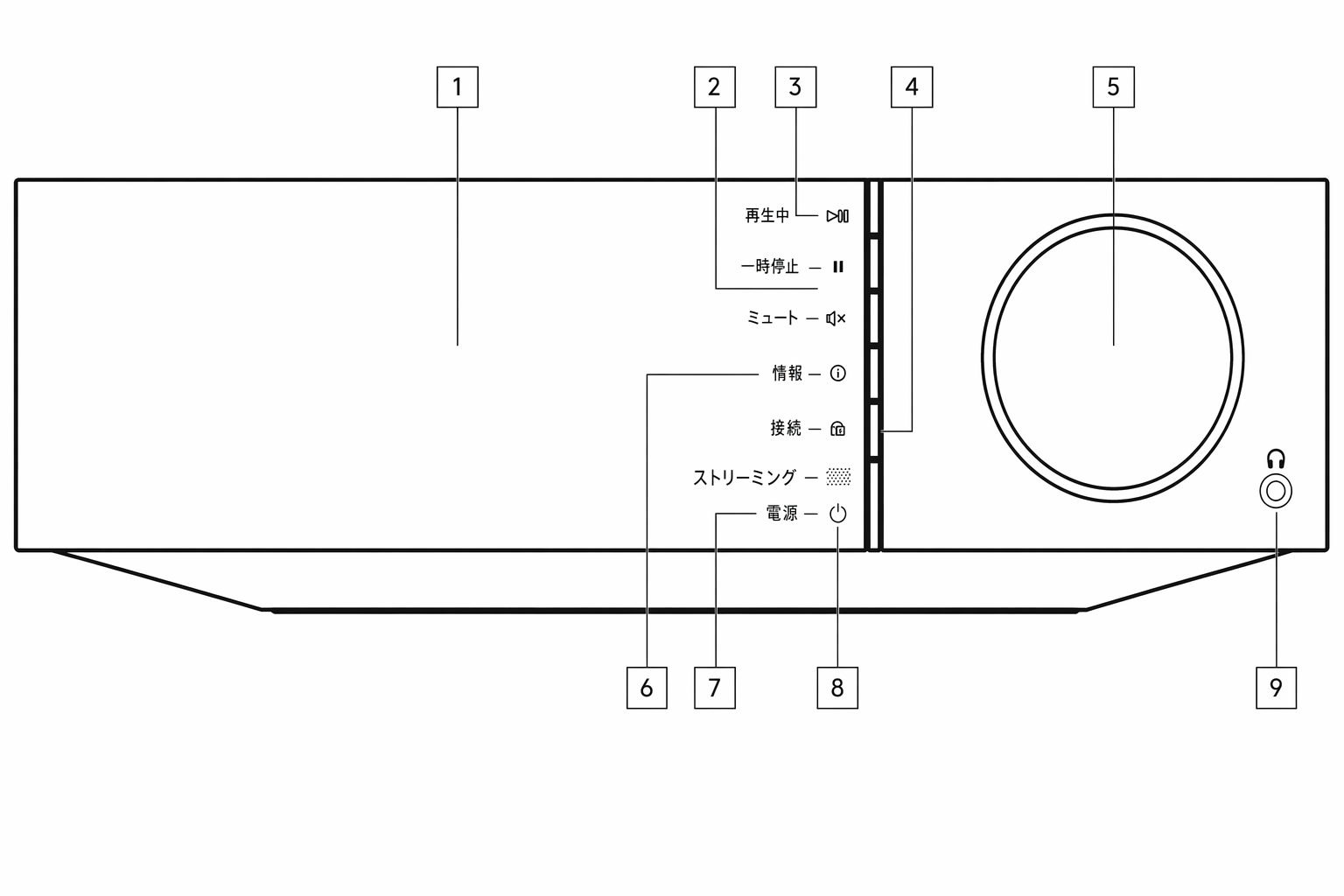
1. ディスプレイ
1. Display
2. スキップ
2. Skip
3. 再生/一時停止
3. Play/Pause
4. スピーカー出力 このボタンを押すと、メニューから別のスピーカー出力を選べます。ソースセレクターノブを使用して、スピーカー A、スピーカー B、スピーカー A+B、ヘッドホン、Bluetooth デバイスのいずれかを選択します。
4. Speaker output Press this button to choose a different speaker output from the menu. Use the source selector knob to select the speaker output between speaker A, speaker B, speaker A+B, headphone and Bluetooth devices.
注:スピーカー A、スピーカー B、スピーカー A+B は Evo 150 でのみ使用できます。
Note: Speaker A, speaker B and speaker A+B are available on the Evo 150 only .
5. 音量/ソースセレクター 音量を変更するには前側を回します。ソースを選択するには後ろ側を回します。
5. Volume/Source selector To change the volume, rotate the front part. To select a source, rotate the back part.
6. Info(情報) 再生中にこのボタンを押すと、「Now Playing」画面を順番に切り替えます。長押しすると製品情報を表示します。
6. Info During playback, pressing this button will cycle through ‘Now Playing’ screens. Press and hold to display the product info.
7. 赤外線(IR)センサー
7. IR sensor
8. スタンバイ/オン
8. Standby/On
9. ヘッドホン 対応するヘッドホンを接続すると、スピーカー出力およびプリアウトを自動的にミュートします。
9. Headphones For suitable headphones – connection will automatically mute the speaker output and the pre-out.
ディスプレイDisplay
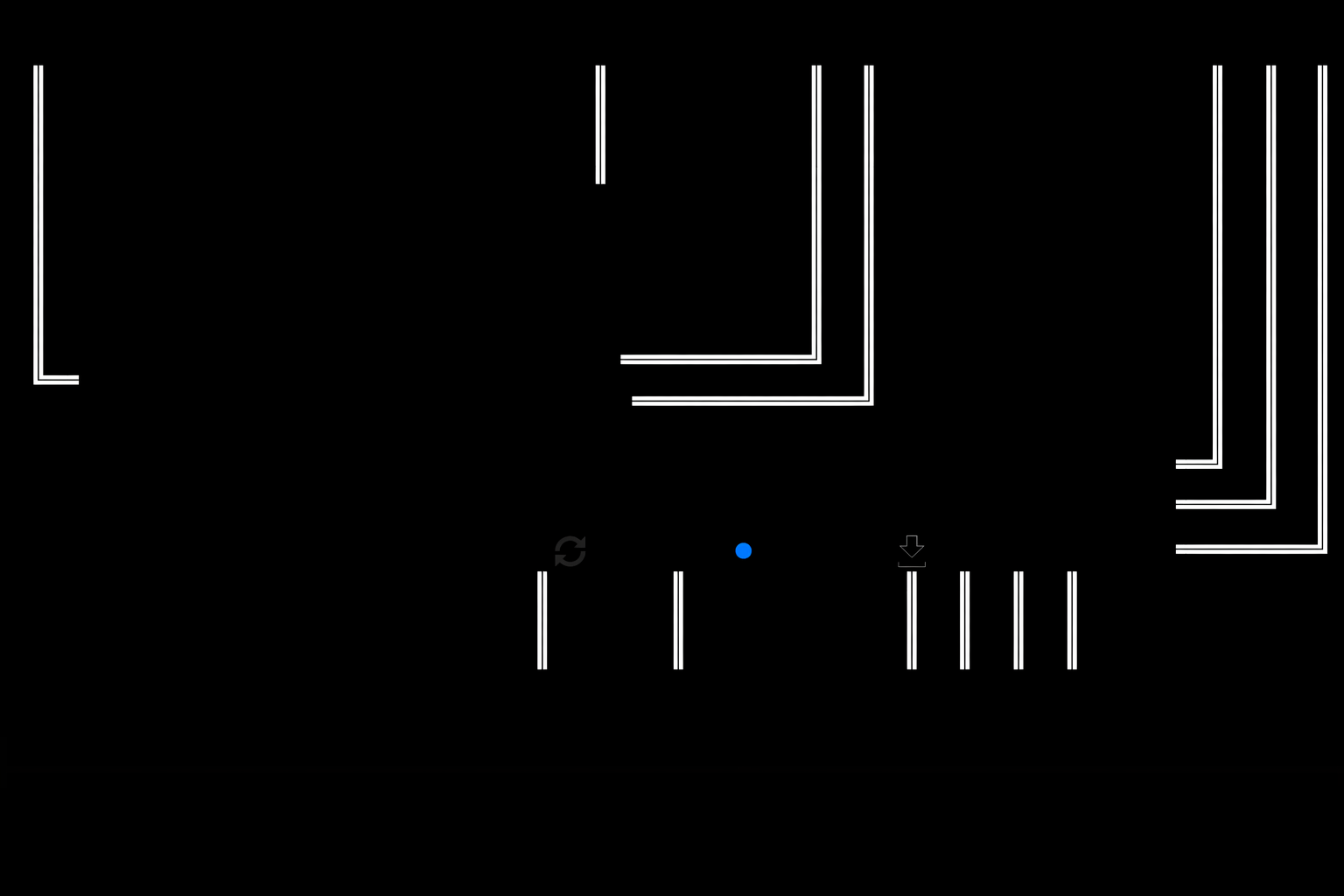
1. アルバム/ソースアートワーク アルバムアートワークを表示します。アートワークがない場合は、ソース入力アイコンを表示します。
1. Album/Source artwork Displays the album artwork. Alternatively, if no artwork is available this will display the source input icon.
2. 曲名、アーティスト、アルバム インターネットラジオの場合は、放送局名と現在の再生内容を表示します。
2. Track title, artist and album For Internet Radio, this will display the radio station name and the current playback.
3. フォーマット情報 ストリーミングのサンプリングレートを表示します。インターネットラジオの場合は、放送局のビットレートを表示します。
3. Format info Displays the streaming sample rate. For Internet Radio, this will display the bitrate the station is streaming.
4. ソース入力 現在選択しているソース入力を表示します。
4. Source input Displays the currently selected source input.
5. プログレスバー 対応している場合、再生中の曲の進捗を表示します。
5. Progress bar When available, this will display the current track progression during playback.
6. トラックタイム 対応している場合、再生中の経過時間を表示します。
6. Track time When available, this will display the elapsed track time during playback.
7. 時計
7. Clock
8. ネットワーク接続 現在のネットワーク接続状況を表示します。
8. Network connection Displays the current network connection.
| ワイヤレスネットワーク接続Wireless network connection | インターネットアクセスのないワイヤレス接続Wireless connection with no internet access | 有線ネットワーク接続Wired network connection | インターネットアクセスのない有線接続Wired connection with no internet access | ネットワーク未接続No network connection |
|---|
9. スピーカー出力 対応するネットワークストリーマーで現在選択されているスピーカー出力を表示します。
9. Speaker output Displays the currently selected speaker output on relevant network streamers.
10. ミュート ネットワークストリーマーがミュート状態のときに表示します。
10. Mute volume Displays when the network streamer is muted.
11. ファームウェアアップデート 新しいファームウェアが利用可能であることを示します。フロントパネルの「Info」ボタンを押すか、StreamMagic アプリを使用してネットワークストリーマーのファームウェアを更新します。
11. Firmware update This indicates when new firmware is available. Press the 'Info' button on the front panel or use the StreamMagic app to update the network streamer's firmware.
12. MQA インジケーター 詳細は MQA のセクションをご覧ください。
12. MQA indicator See the MQA section for more details.
13. シャッフル、リピート、リピート +1
13. Shuffle, Repeat and Repeat +1
Evo 150 リアパネル接続Evo 150 rear panel connections
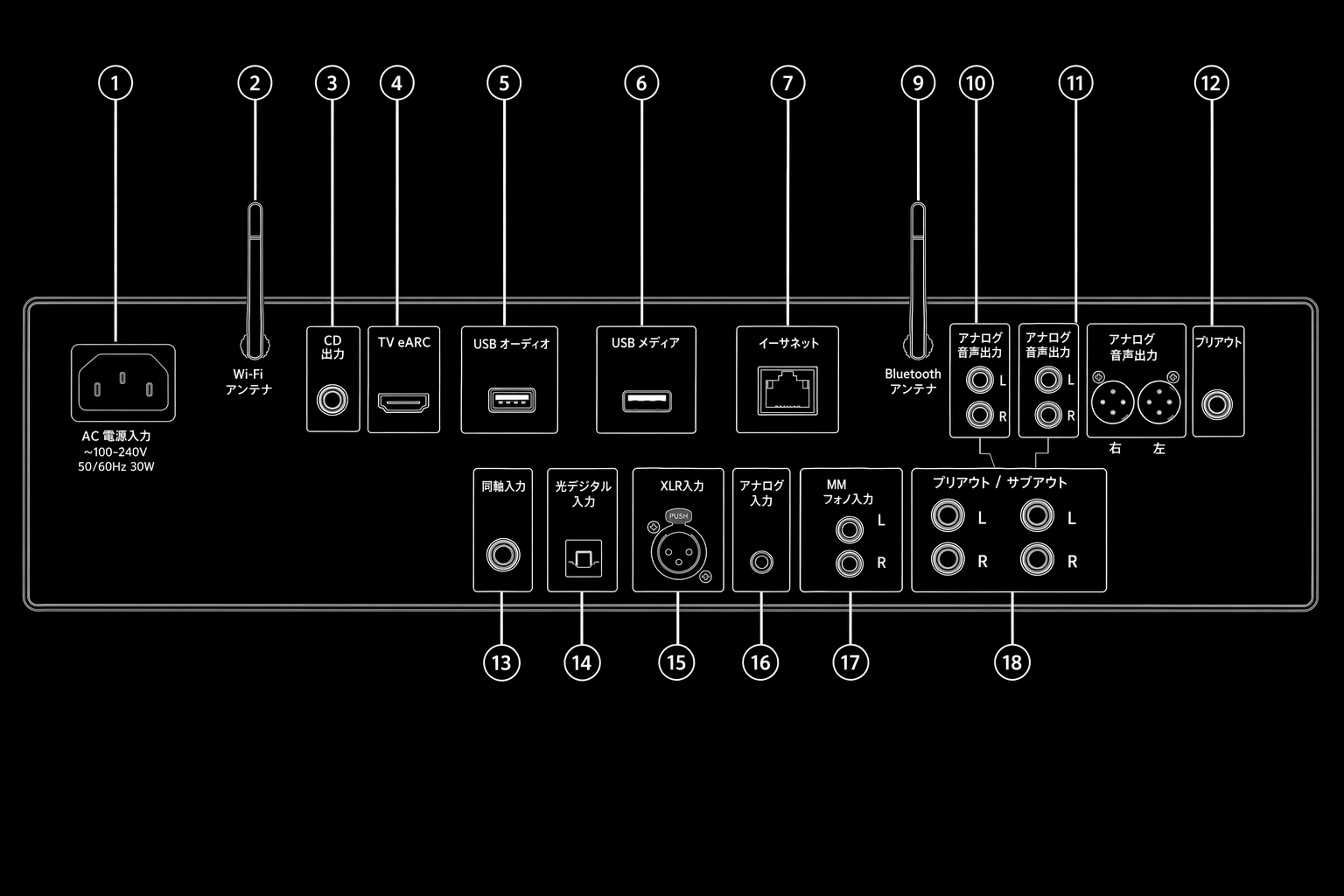
1. AC 電源ソケット
1. AC Power socket
2. スピーカー端子
2. Speaker terminals
B スピーカー 2 組目のスピーカーを接続するための端子です。
B Speaker For connecting a second pair of loudspeakers.
3. Evo CD Evo CD プレーヤー専用の接続端子です。
3. Evo CD A dedicated connection from an Evo CD player.
4. オーディオリターンチャンネル(ARC) ARC 機能に対応したテレビとの接続用です。
4. Audio return channel (ARC) A connection from a TV that supports ARC function.
5. USB オーディオ入力 PC/Mac コンピューターとの接続用です。
5. USB Audio In For connecting to PC/Mac computers.
注:Class 2 USB オーディオの場合、Windows ベースの PC では、接続前に Cambridge Audio USB ドライバーをインストールする必要があります。
Note: For Class 2 USB audio, Windows-based PCs require a Cambridge Audio USB driver to be installed before connection.
グランドスイッチ
Ground Switch
注:グランドスイッチの位置は、デフォルトで 1 に設定してください。ハムノイズが発生した場合は、別の位置を使用してください。
Note: The ground switch position should be set to 1 as default. Use another position if a humming noise occurs.
位置 1 – 通常/デフォルト位置。メインユニットのオーディオグランドをシャーシアースから浮かせます。
Position 1 – Normal/default position. The main unit audio ground is lifted from chassis earth.
位置 2 – USB オーディオのグランドをメインユニットのオーディオグランドから浮かせ、メインユニットのオーディオグランドもシャーシアースから浮かせます。一部の USB オーディオ環境で発生することのあるハムノイズやノイズの低減に役立つ場合があります。
Position 2 – USB Audio ground is lifted from the main unit audio ground, which is also lifted from chassis earth. This may be useful to reduce hum and noise that can occur with some USB Audio setups.
位置 3 – メインユニットのオーディオグランドをシャーシグランドおよび USB オーディオのグランドに直接接続します。特定のテレビ、ターンテーブル、その他の機器を Evo ユニットに接続した場合、一部の環境ではハムノイズやノイズを低減できます。
Position 3 – Main unit audio ground is connected directly to chassis ground and USB Audio ground. For some setups, this can reduce hum or noise when certain TVs, Turntables, and other equipment are connected to the Evo unit.
6. USB メディア ローカルメディアストレージとの接続用です。USB ポートは Apple モバイルデバイスとの接続を意図しておらず、充電を含め、いかなる機能もサポートされていません。
6. USB Media For connecting local media storage. Note that the USB ports are not intended for connection to Apple mobile devices; no functionality, charging or otherwise is supported.
7. Ethernet 高解像度の 352.8kHz、384kHz、および DSD 256 を途切れなく再生するには、有線接続を使用してください。
7. Ethernet Use a wired connection for seamless playback of high-resolution 352.8kHz, 384kHz, and DSD 256.
8. トリガー出力 Evo 150 とトリガー入力を備えた製品をリンクワイヤーで接続します。Evo 150 をオン/スタンバイにすると、両製品の電源状態が同期します。
8. Trigger Out Use a link wire between the Evo 150 and a product that has a trigger input. This will synchronise the power state of both products when powering the Evo 150 on/standby.
9. トリガー入力/IR 入力
9. Trigger In/IR In
トリガー入力 – トリガー出力を備えた製品と Evo 150 をリンクワイヤーで接続します。これにより、Evo 150 の電源状態が制御ユニットと同期します。
Trigger In – Use a link wire between a product that has a trigger output and the Evo 150. This will synchronise the power state of the Evo 150 with the controlling unit
IR 入力 – IR リピーターまたはカスタムインストールシステムから変調された IR コマンドを受信します。
IR In – Receives modulated IR commands from an IR repeater or custom install systems.
10. RS232C カスタムインストール制御 – Evo 150 用の完全なプロトコルを当社ウェブサイトでご覧いただけます。
10. RS232C Custom install control – a full protocol is available for the Evo 150 on our website.
11. デジタル入力(同軸および光(オプティカル))
11. Digital Inputs (Coax and Optical)
注:デジタル入力をテレビに接続している場合は、StreamMagic アプリの入力設定で TV モードを有効にできます。このモードでは、MQA デコードをバイパスして音声経路のリップシンク遅延を最小限に抑え、一部のテレビで発生するドロップアウトや音の乱れの可能性も低減します。
Note: If a digital input is connected to a TV you can enable TV mode in the input settings of the StreamMagic app. This mode minimises lip-sync delays on the audio path by bypassing MQA decoding and also reduces the chance of dropouts and glitches from some TVs.
12. アナログ入力(AUX/XLR)
12. Analogue Inputs (AUX/XLR)
13. MM フォノ入力 ムービングマグネットカートリッジを使用するターンテーブルとの接続用です。
13. MM Phono input For connecting a turntable that uses a moving magnet cartridge.
グランド ターンテーブルに別のアース線がある場合は、ここに接続します。
Ground If your turntable has a separate grounding lead, then connect here.
14. サブウーファー出力
14. Sub-Out
15. プリアウト
15. Pre-Out
Evo 75 リアパネル接続Evo 75 rear panel connections
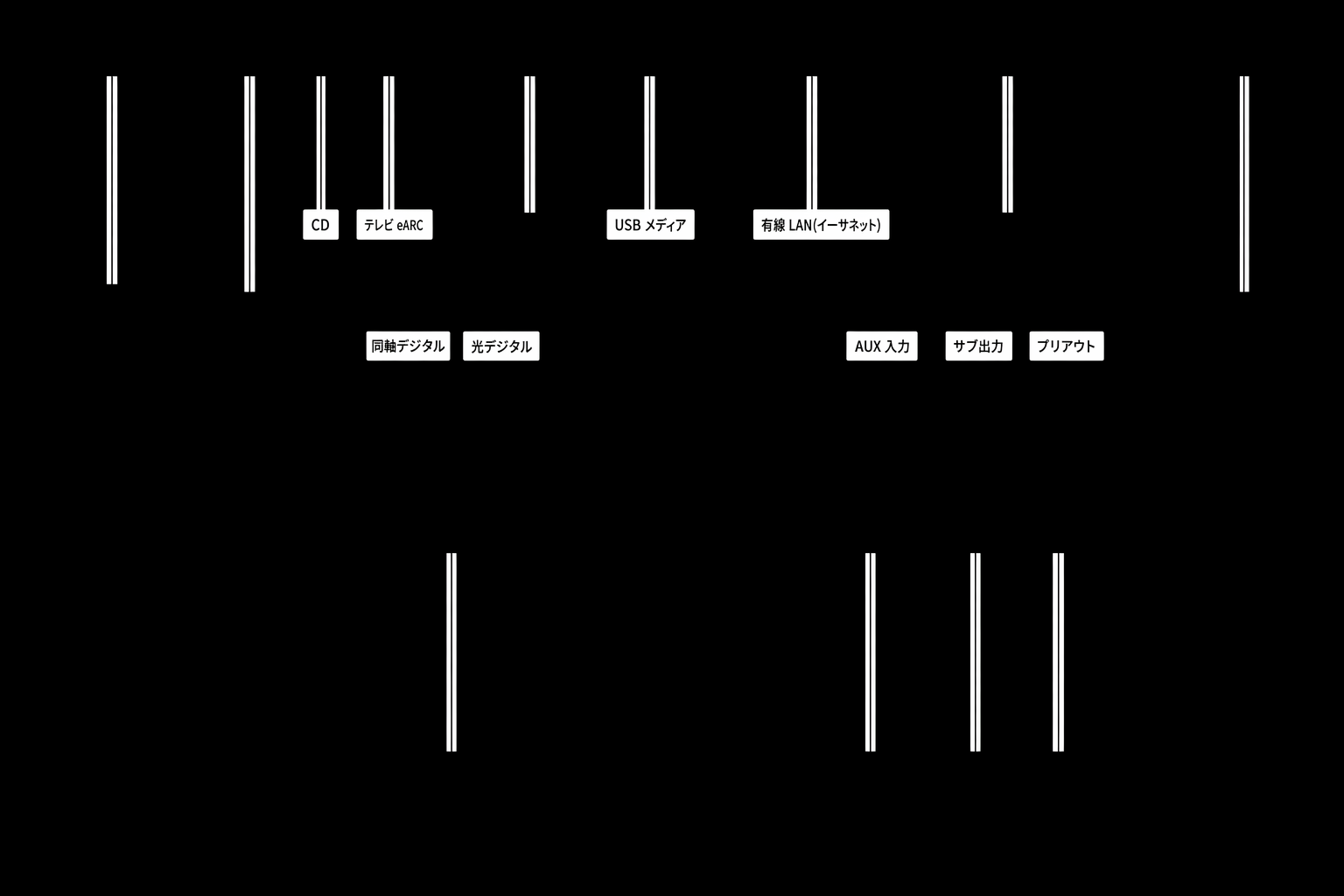
1. AC 電源ソケット
1. AC Power socket
2. スピーカー端子
2. Speaker terminals
3. Evo CD Evo CD プレーヤー専用の接続端子です。
3. Evo CD A dedicated connection from an Evo CD player.
4. オーディオリターンチャンネル(ARC) ARC 機能に対応したテレビとの接続用です。
4. Audio return channel (ARC) A connection from a TV that supports ARC function.
5. グランドスイッチ
5. Ground Switch
注:グランドスイッチの位置は、デフォルトで 1 に設定してください。ハムノイズが発生した場合は、別の位置を使用してください。
Note: The ground switch position should be set to 1 as default. Use another position if a humming noise occurs.
位置 1 – 通常/デフォルト位置。メインユニットのオーディオグランドをシャーシアースから浮かせます。
Position 1 – Normal/default position. The main unit audio ground is lifted from chassis earth.
位置 2 – メインユニットのオーディオグランドをシャーシアースに直接接続します。特定のテレビ、ターンテーブル、その他の機器を Evo ユニットに接続した場合、一部の環境ではハムノイズやノイズを低減できます。
Position 2 – Main unit audio ground is connected directly to chassis earth. For some setups, this can reduce hum or noise when certain TVs, Turntables, and other equipment are connected to the Evo unit
6. USB メディア ローカルメディアストレージとの接続用です。USB ポートは Apple モバイルデバイスとの接続を意図しておらず、充電を含め、いかなる機能もサポートされていません。
6. USB Media For connecting local media storage. Note that the USB ports are not intended for connection to Apple mobile devices; no functionality, charging or otherwise is supported.
7. Ethernet 高解像度の 352.8kHz、384kHz、および DSD 256 を途切れなく再生するには、有線接続を使用してください。
7. Ethernet Use a wired connection for seamless playback of high-resolution 352.8kHz, 384kHz, and DSD 256.
8. IR 入力 変調された IR コマンドを IR リピーターまたはカスタムインストールシステムから受信します。
8. IR In Receives modulated IR commands from an IR repeater or custom install systems.
9. デジタル入力(同軸および光(オプティカル))
9. Digital Inputs (Coax and Optical)
注:デジタル入力をテレビに接続している場合は、StreamMagic アプリの入力設定で TV モードを有効にできます。このモードでは、MQA デコードをバイパスして音声経路のリップシンク遅延を最小限に抑え、一部のテレビで発生するドロップアウトや音の乱れの可能性も低減します。
Note: If a digital input is connected to a TV you can enable TV mode in the input settings of the StreamMagic app. This mode minimises lip-sync delays on the audio path by bypassing MQA decoding and also reduces the chance of dropouts and glitches from some TVs.
10. アナログ入力
10. Analogue Input
11. サブウーファー出力
11. Sub-Out
12. プリアウト
12. Pre-Out
リモコンRemote control
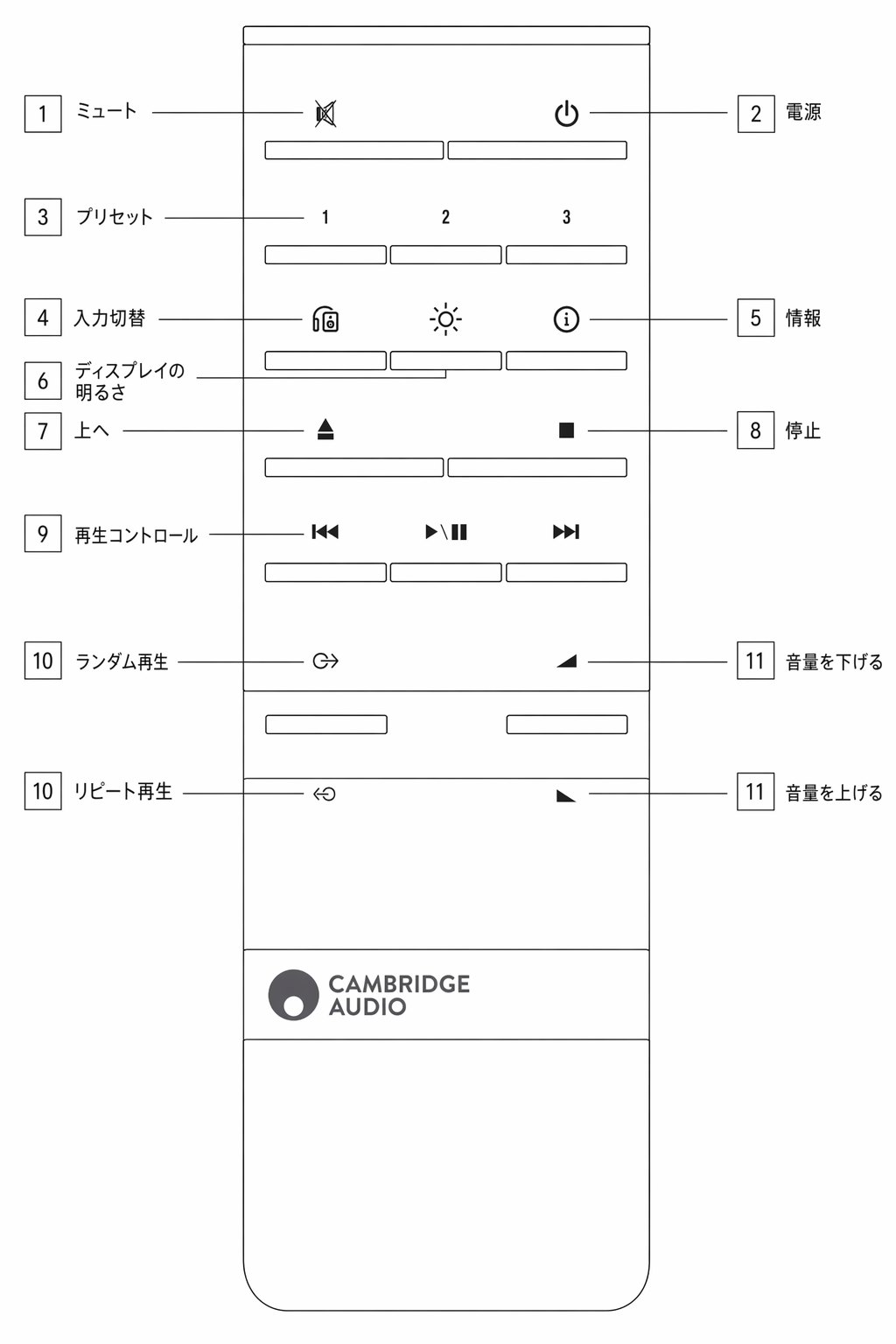
1. ミュート
1. Mute
2. スタンバイ/オン
2. Standby/On
3. プリセットボタン 長押しすると、現在のソースを保存します。
3. Preset buttons Press and hold to store the current source.
注:メディアプレーヤーのキュー、AirPlay、または Chromecast ソースでは利用できません。
Note: Not available for media player queue, AirPlay or Chromecast sources.
4. スピーカー出力 別のスピーカー出力を選択するには押します。このボタンを押すたびに、スピーカー出力がスピーカー A、スピーカー B、スピーカー A+B、ヘッドフォン、Bluetooth デバイスの間で切り替わります。
4. Speaker output Press to choose a different speaker output. Pressing this button will toggle the speaker output between speaker A, speaker B, speaker A+B, headphone and Bluetooth devices.
5. Info 再生中にこのボタンを押すと、「Now Playing」画面が順に切り替わります。長押しすると製品情報が表示されます。
5. Info During playback, pressing this button will cycle through ‘Now Playing’ screens. Press and hold to display the product info.
6. 明るさ このボタンを押すと、ディスプレイのバックライトの明るさを、明るい、暗い、またはバックライトをオフにする設定に切り替えます。
6. Brightness Pressing this button will alter the brightness of the display backlight between bright, dim and an option to switch off the backlight.
7. CD 取り出し(Evo CD のみ) スロットから CD を取り出すには押します。
7. Eject CD (Evo CD only) Press to eject the CD from the slot.
8. 停止(Evo CD のみ)
8. Stop (Evo CD only)
9. 再生/一時停止/スキップ
9. Play/Pause/Skip
10. ソース選択
10. Source selection
11. 音量
11. Volume
交換可能なサイドパネルReplaceable side panel
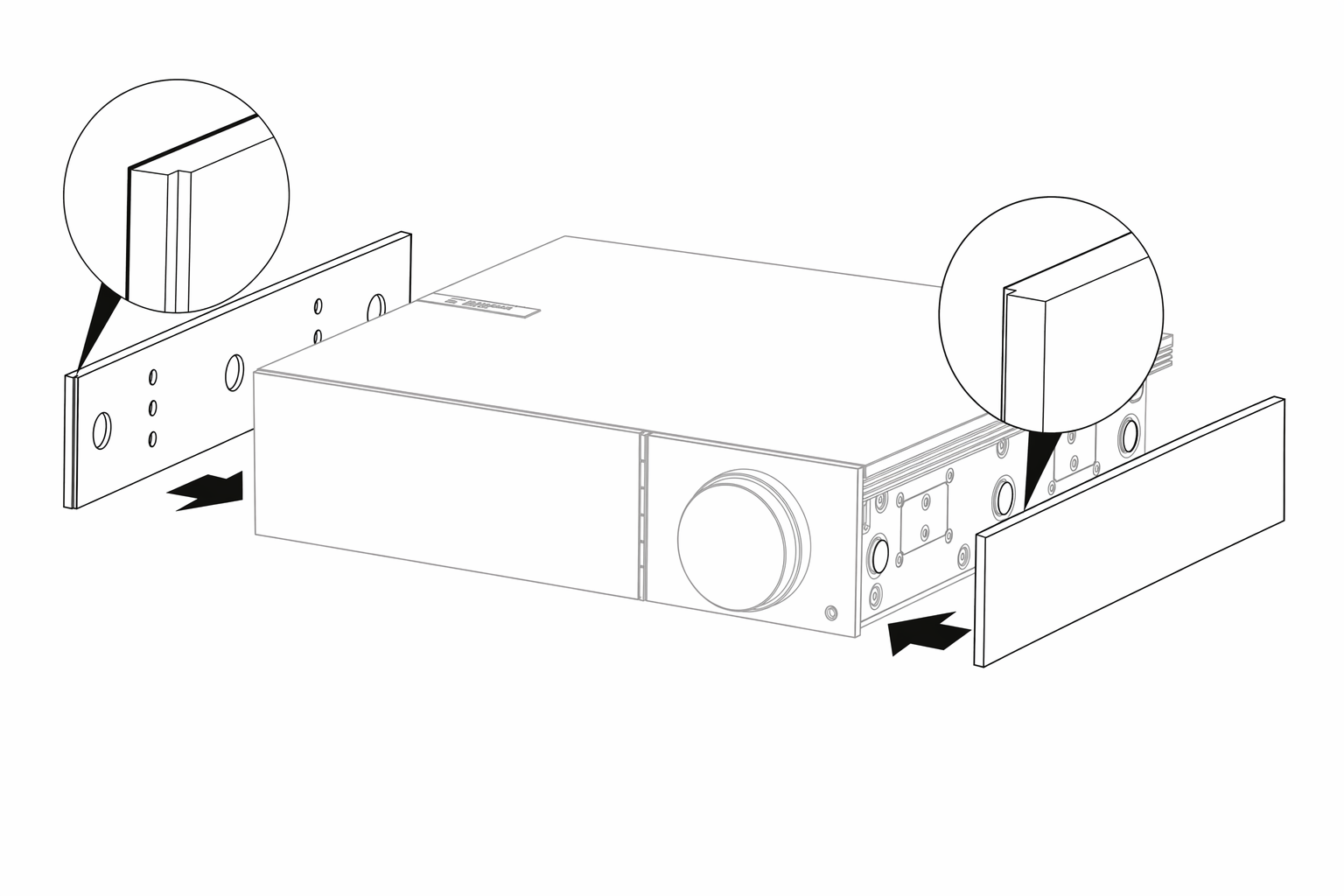
新しいマグネット式サイドパネルを取り付ける際は、溝の切り込みがフロントパネルの向きと揃っていることを確認してください。パネルの背面を持って、背面側から差し込んでください。
When installing new magnetic side panels, please ensure that the groove cuts are aligned with the direction of the front panel. Insert from the rear by holding the rear of the panel.
重要な注意:正しく行わないと、マグネットが強く引き寄せられ、指を挟むおそれがあります。
Important note: The magnets can snap hard and pinch your fingers if not done correctly.
接続するGetting connected
基本接続Basic connections
以下の図は、Evo と 1 組のスピーカーを接続する基本的な方法を示しています。
The diagram below shows the basic connection of your Evo to a pair of loudspeakers.
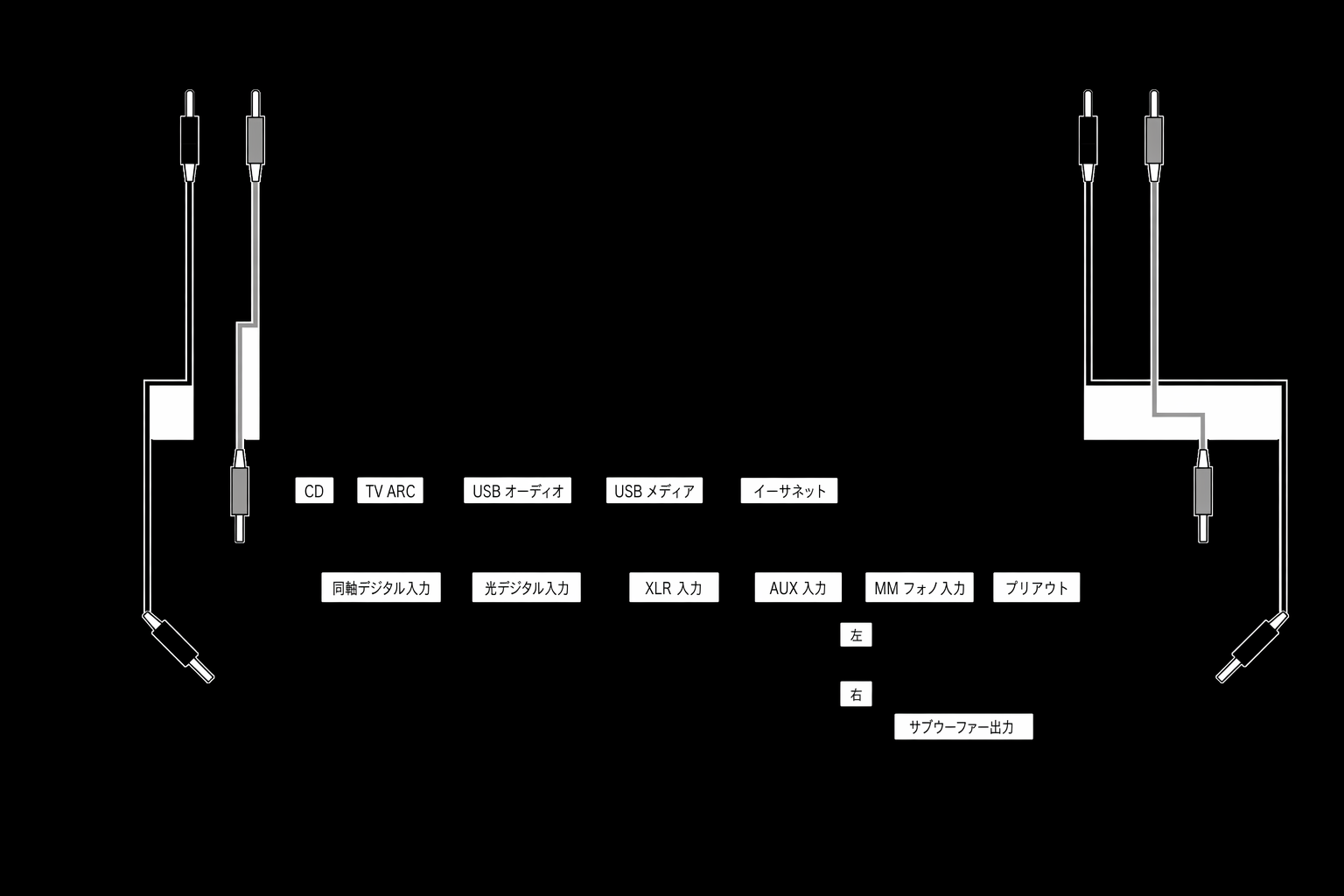
注:
Notes :
- バナナプラグを使用する場合は、プラグを差し込む前にスピーカー端子を完全に締めてください。When using a banana plug, make sure the speaker terminals are completely tightened before inserting the plug.
- スピーカー端子にバナナプラグを差し込むには、端子の丸いピップを取り外す必要があります。The speaker terminals will need to have the round pips removed before you can insert a banana plug into them.
Speaker B の接続(Evo 150 のみ)Speaker B connections (Evo 150 only)
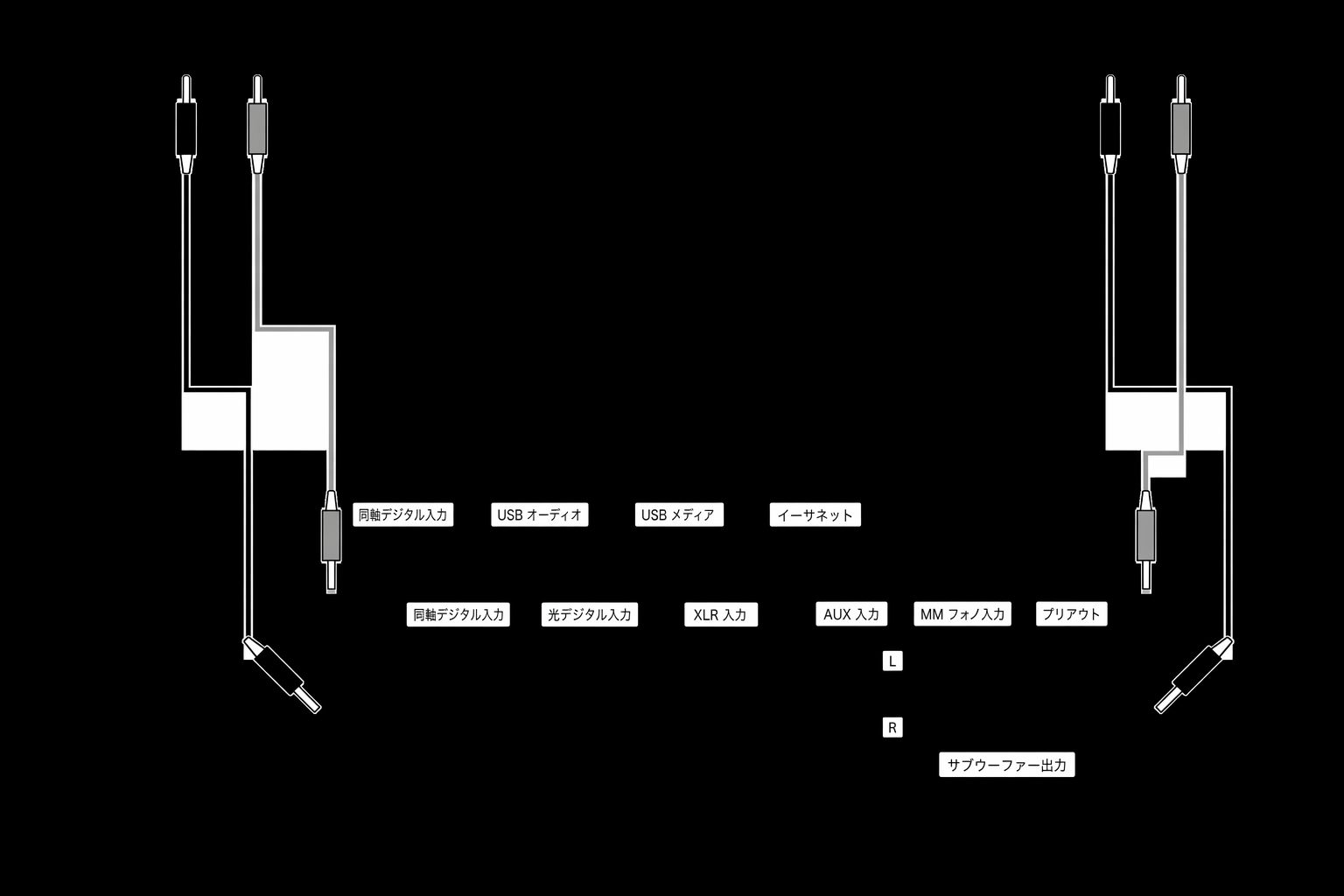
以下の図は、2 組目のスピーカーの接続方法を示しています。スピーカー出力アイコンを押すと、スピーカー A、スピーカー B、またはスピーカー A と B の同時使用が順に切り替わります。
The diagram below shows the connection for a second pair of loudspeakers. Pressing the speaker output icon will scroll through the selection of speakers, speaker A, speaker B, and speaker A and B together.
Preamp Out の接続Preamp Out connections
Preamp Out 端子は、パワーアンプまたはアクティブサブウーファーに接続するためのものです。
The Preamp Out sockets are for connecting to a power amplifier or active subwoofer.
バランスオーディオ接続(Evo 150 のみ)Balanced audio connections (Evo 150 only)
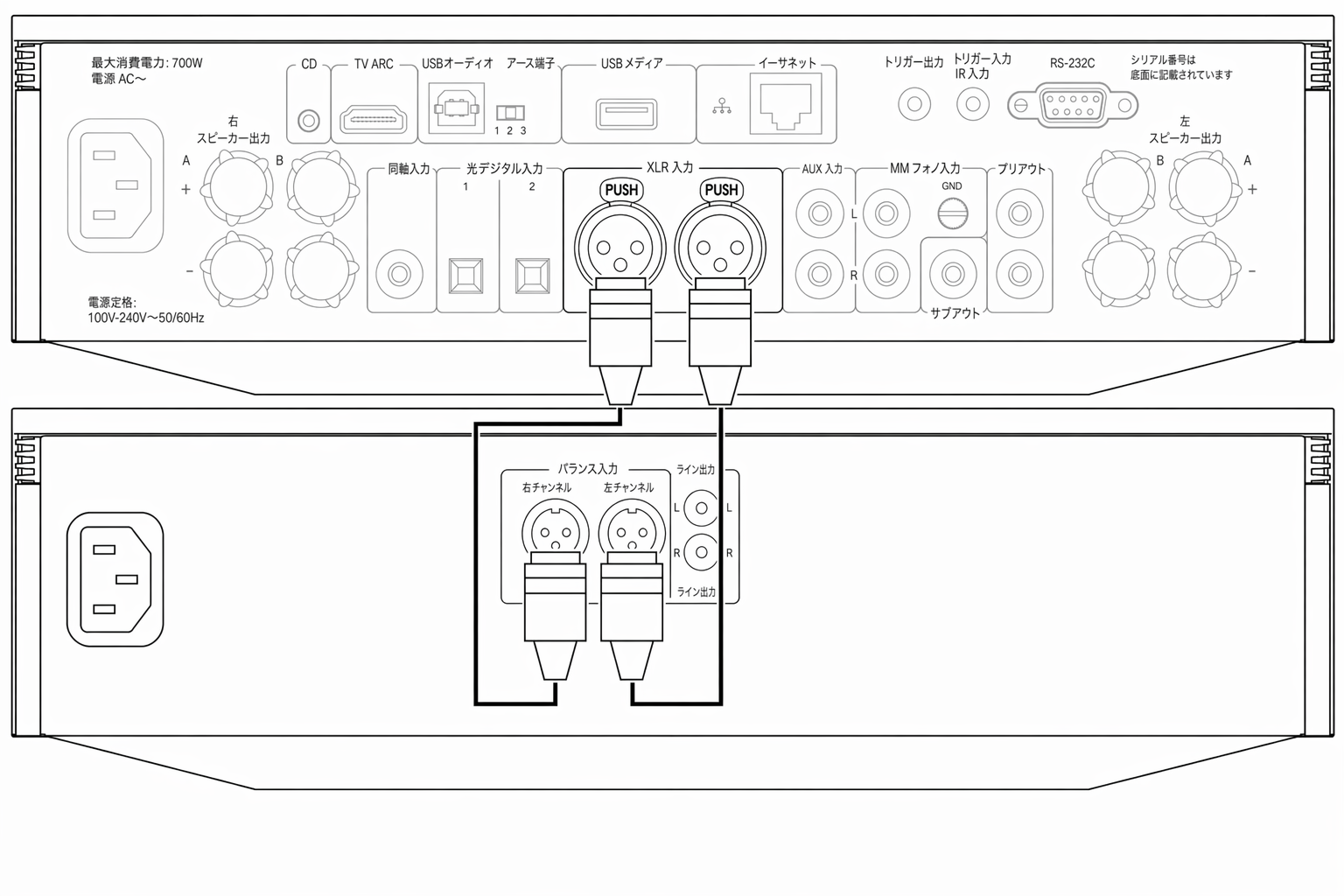
以下の図は、バランスオーディオ入力を使用して Evo 150 を接続する方法を示しています。
The diagram below shows how to connect the Evo 150 using the Balanced Audio inputs.
USB オーディオ接続(Evo 150 のみ)USB Audio connection (Evo 150 only)
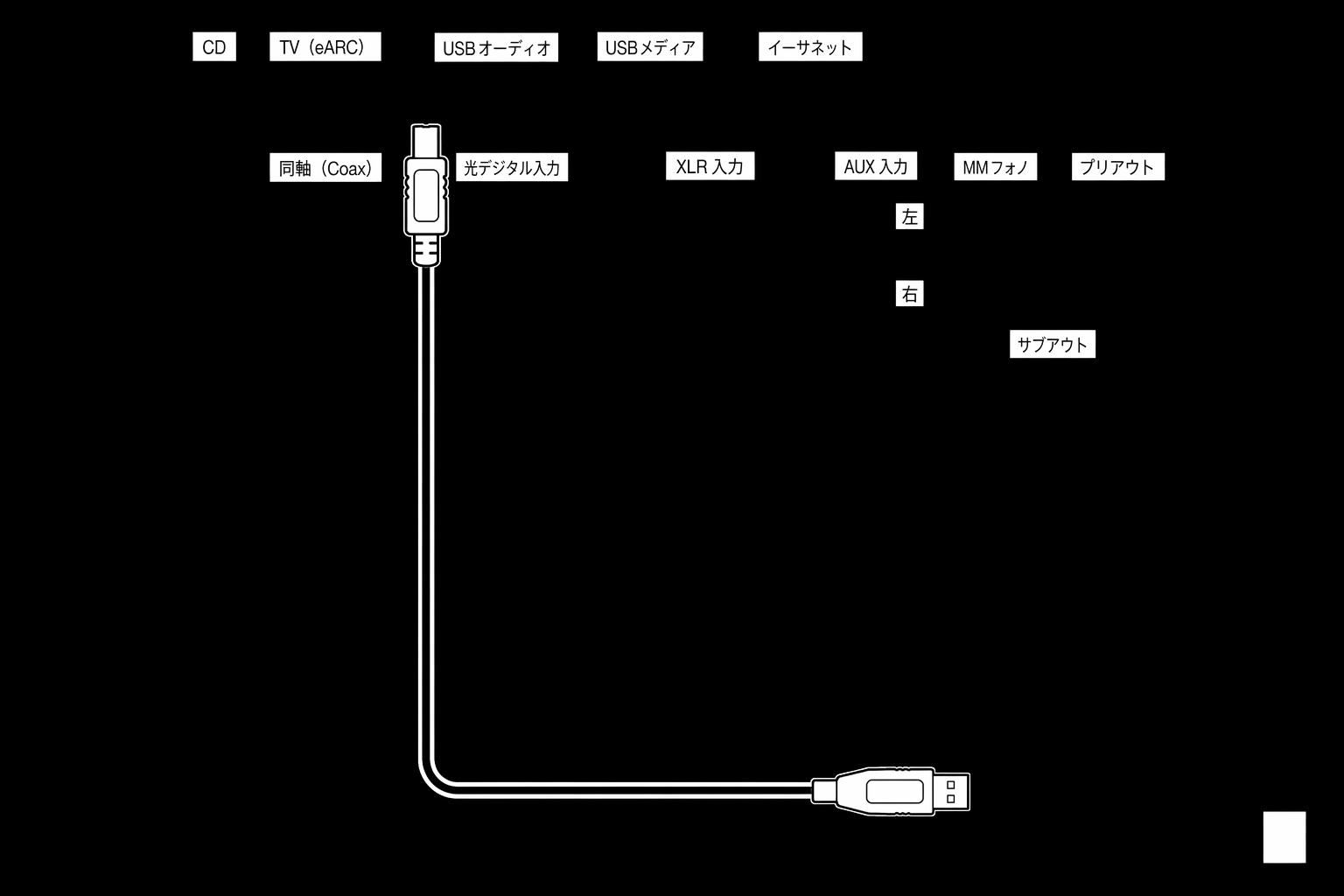
重要な注意:Evo 150 を初めてセットアップする前に、USB Audio 接続が取り外されていることを確認してください。ファームウェア更新を適用した後であれば、USB Audio を再接続できます。
Important note: Before setting up your Evo 150 for the first time, please make sure that the USB Audio connection is unplugged. USB Audio can be re-connected once any firmware updates are applied.
PC のセットアップ
PC Setup
注:PC を EVO に接続する前に、必要な Cambridge Audio Windows 2.0 USB ドライバーを PC にインストールしてください。最新の USB オーディオドライバーへのリンクはこちらです。
Note : Before connecting your PC to the EVO, ensure you install the required Cambridge Audio Windows 2.0 USB driver on your PC. Please find a link to the most recent USB Audio driver here .
1. EVO 150 を PC に接続します。
1. Connect your EVO 150 to your PC.
- 正しいドライバーをインストールしたら、USB Audio ケーブル(Type A to Type B)を使用して、EVO 150 の USB Audio In と PC の USB ポートを接続します。After installing the correct driver, using a USB Audio cable (Type A to Type B), connect the USB Audio In on your EVO 150 to a USB port on the PC.
2. USB オーディオソースを選択します。
2. Select the USB Audio source.
- EVO 150 前面のソースセレクターを使用するか、Home タブに移動してから、StreamMagic アプリの Sources セクションで USB Audio を選択します。This can be done using the source selector on the front of the EVO 150, or by going to the Home tab and then selecting USB Audio within the Sources section of the StreamMagic app.
Windows タスクバーにインストールされているはずの CA Control Panel を開きます。接続されている Cambridge Audio USB Audio デバイスと現在のサンプルレートが表示されます。
3. Navigate to the CA Control Panel which should now be installed in your Windows taskbar. This will show any connected Cambridge Audio USB Audio device and current sample rate.
PC で、Settings > System > Sound に移動します。ドロップダウンメニューから EVO 150 を出力デバイスとして選択します。
4. On your PC, navigate to Settings > System > Sound . Select the EVO 150 as your output device from the drop-down menu.
同じウィンドウの右側にある Related Settings で、Sound Control Panel を選択します。
5. Within this same window under Related Settings on the right-hand side, select Sound Control Panel .
Playback タブで EVO 150 が既定の出力デバイスになっていることを確認し、Properties を選択します。
6. On the Playback tab, ensure that the EVO 150 is the default output device, then select Properties .
Speaker Properties で Advanced タブに移動します。希望するビット深度とサンプルレートを選択します。
7. Within Speaker Properties , navigate to the Advanced tab. Select the desired bit depth and sample rate preference.
注:この手順は任意です。
Note : This step is optional.
8. これで PC の出力音声が EVO 150 経由で再生されます。
8. Your PC’s output will now playback via the EVO 150.
Mac のセットアップ
Mac Setup
注:Mac の場合は追加のドライバーは不要です。
Note : No extra drivers are required when using a Mac.
1. EVO 150 を Mac に接続します。
1. Connect your EVO 150 to your Mac.
- USB Audio ケーブル(Type A to Type B)を使用して、EVO の USB Audio In と Mac の USB ポートを接続します。Using a USB Audio cable (Type A to Type B), connect the USB Audio In on your EVO to a USB port on the Mac.
注:USB Type A ポートのない Mac を使用する場合は、USB Type C(Thunderbolt 3)- USB Type B 接続も使用できます。
Note : If using a Mac without a USB Type A port, you may also use USB Type C (Thunderbolt 3) to USB Type B connection.
2. USB オーディオソースを選択します。
2. Select the USB Audio source.
- EVO 150 前面のソースセレクターを使用するか、Home タブに移動してから、StreamMagic アプリの Sources セクションで USB Audio を選択します。This can be done using the source selector on the front of the EVO 150, or by going to the Home tab and then selecting USB Audio within the Sources section of the StreamMagic app.
Mac の System Preferences で Sound 設定を開きます。EVO 150 を出力サウンドデバイスとして選択します。
3. Within the System Preferences of the Mac, locate the Sound settings. Select the EVO 150 as the output sound device.
Mac で Applications > Utilities > Audio MIDI Setup に移動します。左側の列で EVO 150 を出力サウンドデバイスとして選択し、ドロップダウンの項目から希望するビット深度とサンプルレートを選択します。
4. On the Mac navigate to Applications > Utilities > Audio MIDI Setup . Select the EVO 150 as the output sound device on the left column, and then using the drop-down options select the desired bit depth and sample rate preference.
5. これで Mac の出力音声が EVO 150 経由で再生されます。
5. Your Mac’s output will now playback via the EVO 150.
ネットワーク接続Network connections
重要な注意:EVO は、Wi-Fi または Ethernet 経由で、できる限り常にインターネットネットワークに接続しておくことが極めて重要です。これにより、本機が重要なセキュリティプロトコル、サードパーティとの互換性、最新のソフトウェア要件に対応できるよう、定期的に更新されます。
Important Note : It is vitally important that your EVO remains connected to an internet network as often as possible, either via Wi-Fi or Ethernet. This will ensure that the unit is regularly updated to meet essential security protocols, third party compatibility and the latest software requirements.
Cambridge Audio が提供する定期的なファームウェア更新を本機に適用しないと、製品保証が無効になり、時間の経過とともに本機に重大な問題が発生する可能性があります。本機が最新のファームウェアバージョンに更新されていることを確認してください。EVO の最新のファームウェアバージョンに関する情報はこちらで確認できます。
Failure to maintain your device with regular firmware updates as provided by Cambridge Audio will void the product warranty and is likely to cause major issues to the unit in time. Please ensure that your unit is updated to the most current firmware version. Information on the latest firmware version for the EVO can be found here .
注:可能な限り、電力線アダプターや Wi-Fi 信号ブースター/エクステンダーの使用は避けてください。ネットワーク接続の信頼性が損なわれる可能性があります。
Note : Where possible, avoid the use of powerline adapters, Wi-Fi signal boosters/extenders as these can disrupt the reliability of the network connection.
有線ネットワークに接続する
Connecting to a wired network
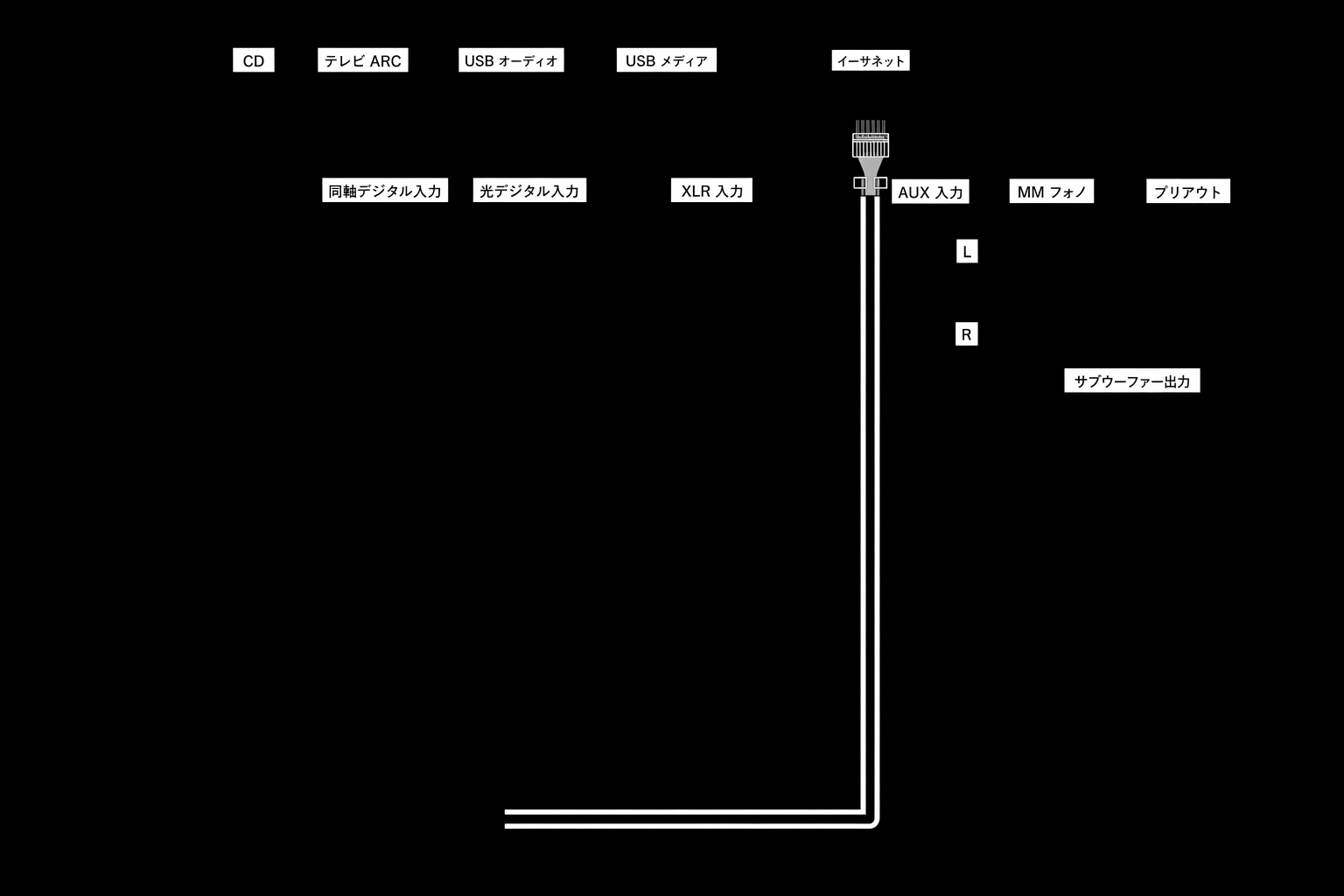
- ネットワークケーブル(Category 5/5E ストレート Ethernet ケーブル)で EVO とルーターを接続します。Connect a network cable (Category 5/5E straight-through Ethernet cable) between the EVO and your router.
- これで EVO が自動的にネットワークに接続されます。Your EVO will now automatically connect to the network.
ワイヤレスネットワークに接続する
Connecting to a wireless network
iOS の場合:
iOS :
- EVO がワイヤレスルーターの電波が届く範囲にあることを確認し、本機の電源を入れます。Ensure that your EVO is in range of your wireless router, and then power on your unit.
- iOS デバイスの Wi-Fi 設定を開き、「SETUP NEW AIRPLAY SPEAKER」で「EVO 75/100」を選択します。Go to the Wi-Fi settings on your iOS device and under ‘SETUP NEW AIRPLAY SPEAKER’ select 'EVO 75/100'.
- 接続したら、本機のセットアップを完了するために、Apple App Store から StreamMagic アプリをダウンロードしてインストールします。Once connected, to complete unit setup download and install the StreamMagic app from the Apple App store.
Android:
Android :
- EVO がワイヤレスルーターの電波が届く範囲にあることを確認し、本機の電源を入れます。Ensure that your EVO is in range of your wireless router, and then power on your unit.
- Google Play ストアから StreamMagic アプリをダウンロードしてインストールします。Download and install the StreamMagic app from the Google Play store.
- StreamMagic アプリを開き、「Connect」を選択します。Open the StreamMagic app and select ‘Connect’.
- 「Choose a device」で「Set up a new device」を選択し、続いて Evo 75 または 150 を選択します。Under Choose a device select 'Set up a new device' and then select the Evo 75 or 150.
- 「Wireless Connection」を選択し、「Continue」を選択します。Select ‘Wireless Connection’ and then 'Continue'.
- Android デバイスに、電波の届く範囲にある利用可能な Wi-Fi デバイスがすべて表示されます。「Setup:EVO 75/150」を選択します。Your Android device will now show all available Wi-Fi devices in range. Select 'Setup:EVO 75/150'.
- 接続が完了すると、Wi-Fi ネットワークのパスワード入力を求められます。パスワードを入力して「Continue」を選択します。Once connected, you will be prompted to enter your Wi-Fi network password. Enter the password and select 'Continue'.
- EVO が Wi-Fi ネットワークに接続します。接続には最大 1 分かかる場合があります。Your EVO will now connect to your Wi-Fi network, this may take up to a minute.
- 接続が完了したら、StreamMagic アプリ内で本機の初期セットアップを完了します。Once connected, complete the initial setup of your unit within the StreamMagic app.
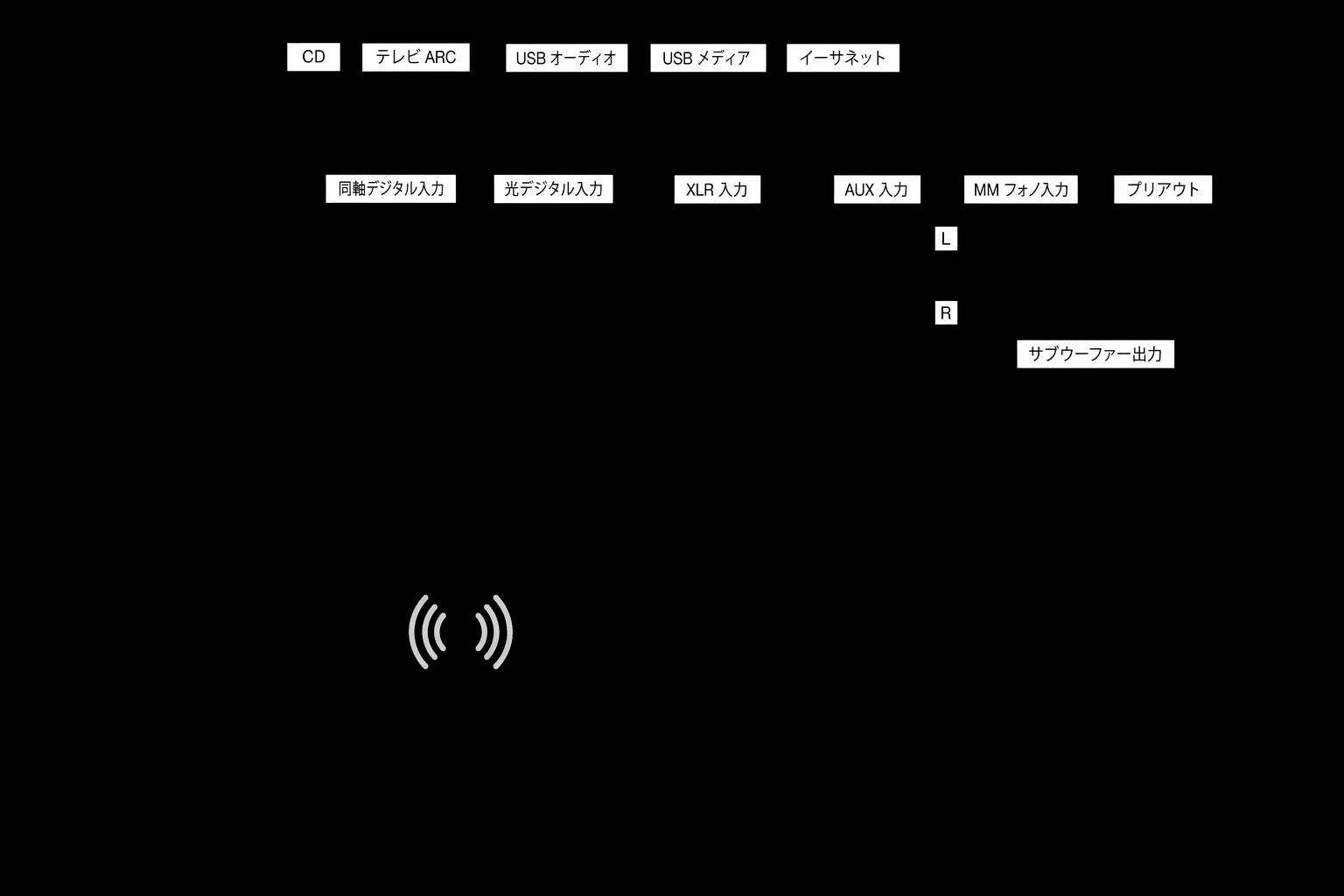
注:Evo はワイヤレスルーターの電波が届く範囲にある必要があります。
Note: Your Evo will need to be in range of your wireless router.
ARC 入力ARC input
window.ATL_JQ_PAGE_PROPS = { "triggerFunction": function(showCollectorDialog) { //jQuery が利用可能である必要があります! jQuery("#submitIssueButton").click(function(e) { e.preventDefault(); showCollectorDialog(); }); }};TV の ARC 機能を使うと、接続したオーディオ製品に音声と制御コマンドを送信できます。これにより、必要に応じて TV からオーディオ製品の電源を入れたり、TV のリモコンで音量を調整したりできます。
window.ATL_JQ_PAGE_PROPS = { "triggerFunction": function(showCollectorDialog) { //Requires that jQuery is available! jQuery("#submitIssueButton").click(function(e) { e.preventDefault(); showCollectorDialog(); }); }};The ARC function on a TV allows it to send audio and control commands to a connected audio product. This allows the TV to switch on the audio product when needed, and also to control the volume from the TV remote.
トラブルシューティングTroubleshooting
フロントパネルに信号が表示されない、または接続した製品から音声が出力されない場合No signal shown on the front panel or no audio output from your connected product
- TV の HDMI 入力が ARC に対応していることを確認してください。Make sure the HDMI input on your TV supports ARC
- TV が内蔵スピーカーではなく、接続したオーディオシステムを使用する設定になっていることを確認してください。Make sure the TV is set to use a connected audio system rather than its internal speakers
- TV の音声出力が「Stereo PCM (Uncompressed)」に設定されていることを確認してください。Make sure that the audio output of your TV is set to 'Stereo PCM (Uncompressed)'
- HDMI ケーブルが HDMI 1.4 以降に対応していることを確認してください。Make sure your HDMI cable is compatible with HDMI 1.4 or above
TV から接続した製品の電源を入れられない、または操作できない場合TV will not switch on or control your connected product
- StreamMagic アプリの ARC ソース設定ページで「TV Power Control」が有効になっていることを確認してください。Make sure that 'TV Power Control' is enabled in the StreamMagic app on the ARC source settings page
問題の報告Reporting an issue
上記のトラブルシューティング手順を実行しても、製品で ARC が動作しない場合は、こちらからお知らせください。
If after following the above troubleshooting steps you still have a problem getting ARC to work with your product, please let us know here .
StreamMagic アプリ - セットアップStreamMagic app - Setup
本プレーヤーはネットワークに接続されているため、製品の入力端子に接続した機器の音声だけでなく、ホームネットワーク上やインターネット上のさまざまなソースから音楽をストリーミング再生できます。
Your player is network connected, not only can you listen to devices connected to the inputs on the product but you can also stream music from many different sources both on your home network and from the internet.
プレーヤーをセットアップするには、まず Apple App Store または Google Play ストアから StreamMagic アプリをダウンロードしてください。
To set up your player, please first download the StreamMagic app from the Apple app store or Google Play store.


セットアップSet up
- プレーヤーの電源を入れ、画面の指示に従って使用する言語を選択します。Switch on your player and follow the on screen instructions to select your preferred language.
- StreamMagic アプリを開き、表示される指示に従ってプレーヤーをネットワークに接続し、セットアップを完了します。この手順では、保留中の新しいアップデートも適用されます。Open the StreamMagic app and follow the instructions provided to complete setting up your player on your network. This process will also apply any new updates that may be pending.
注:セットアップ中にプレーヤーの名前を設定するよう求められます。プレーヤー固有の名前を設定してください。ストリーミングサービスやスマートホームサービスの使用時に見つけやすくなります。
Note: During the set up process you will be asked to give your player a name, please make sure this is unique to your player. This will make it easier to find when using streaming and smart home services.
プレーヤーがホームネットワークに接続されると、インターネットラジオ、ストリーミングサービス、ネットワークドライブ、USB ドライブなど、すべてのソースを完全に操作できます。
Once your player is connected to your home network you'll have full control of your sources, including internet radio, streaming services, network and USB drives and more.
StreamMagic アプリの詳細については、次の URL をご覧ください: https://www.cambridgeaudio.com/products/streammagic
For more information on our StreamMagic app, please visit: https://www.cambridgeaudio.com/products/streammagic
Google Home / Chromecast built-inGoogle Home / Chromecast built-in
本プレーヤーはネットワークに接続されているため、製品の入力端子に接続した機器の音声だけでなく、ホームネットワーク上やインターネット上のさまざまなソースから音楽をストリーミング再生できます。
Your player is network connected, not only can you listen to devices connected to the inputs on the product but you can also stream music from many different sources both on your home network and from the internet.
本プレーヤーは Chromecast built-in に対応しており、Google Home に組み込むことができます。プレーヤーをセットアップするには、スマートフォンまたはタブレットに Google Home アプリをダウンロードしてください。
Your player features Chromecast built-in and can be incorporated in to your Google Home. To set up your player, download the Google Home app on your smart phone or tablet.
Chromecast built-in が搭載されているため、スマートフォンがリモコンになります。普段使っているアプリの「Cast」ボタンをタップするだけで、スマートフォン、タブレット、ノート PC からプレーヤーへ音楽、ポッドキャスト、プレイリストをストリーミング再生できます。
With Chromecast built into your player, your phone becomes your remote. Simply tap the Cast button from apps you already know and love to stream music, podcasts and playlists from your phone, tablet or laptop to your player.
Chromecast built-inChromecast built-in
スマートフォンがリモコンになります
Your phone is your remote
- 普段使っているアプリの「Cast」ボタンをタップするだけです。新たなログインやダウンロードは必要ありません。Simply tap the Cast button from apps you already know and love. No new logins or downloads required.
- 家のどこにいても、スマートフォンで検索、再生、一時停止、音量を上げる操作ができます。Use your phone to search, play, pause and turn up the volume from anywhere in the home.
- ストリーミング中も、スマートフォンで他の操作ができます。SNS をスクロールしたり、テキストメッセージを送ったり、電話に応答したりできます。While you’re streaming, you can keep using your phone for other things – scroll through social media, send a text, and even accept calls.
- Chromecast 対応スピーカーでマルチルームキャストを使用すれば、家中で音楽を楽しめます。Enjoy music throughout your house when you use multi-room casting with Chromecast-enabled speakers.
- 「Hey Google」と言うだけで、プレーヤーにキャストできます。Just say “Hey Google” to cast to your player
無制限のエンターテインメントを、お好きな時間に
Unlimited entertainment, all on your schedule
- 数百種類のアプリに対応し、新しいアプリも常に追加されています。Works with hundreds of apps and new apps are being added all the time.
- Pandora、Spotify、Youtube Music などの人気音楽サービスから、何百万もの楽曲を選べます。Choose from millions of songs from popular music services like Pandora, Spotify, and Youtube Music.
注:StreamMagic アプリからプレーヤーを初めてセットアップするとき、または工場出荷時設定にリセットした後は、Chromecast 機能を有効にするため、表示された Google の利用規約に必ず同意してください。
Note : When first setting up your Player via the StreamMagic app or after a factory reset, please ensure that you accept Google's terms and conditions when prompted to enable Chromecast functionality.
Android、Google Play、Chromecast built-in のロゴは、Google Inc. の商標です。
Android, Google Play and the Chromecast built-in logo are trademarks of Google Inc.
Chromecast built-in のすべての機能を、一部の地域では利用できない場合があります。
Full Chromecast built-in features may not be available in some territories.
インターネットラジオInternet radio
StreamMagic アプリの「Radio」タブでは、多彩なインターネットラジオ局を閲覧して再生できます。また、お気に入りのインターネットラジオ局やその他のメディアを最大 99 件までプレーヤーのプリセットとして登録し、StreamMagic アプリから呼び出すこともできます。リモコンが付属しているプレーヤーでは、限られた数のプリセットをリモコンから呼び出せます。
You can browse and play a wide variety of Internet Radio stations in the StreamMagic app Radio tab. You can also assign up to 99 of your favourite Internet Radio stations and other media as presets on your player, which can then be recalled using the StreamMagic app. A limited amount of presets can be recalled via the remote control if your player includes one.
StreamMagic アプリでプリセットを検索して登録する手順:You can search and assign a preset via the StreamMagic app:
- StreamMagic アプリで「Radio」タブを開きます。Within the StreamMagic app navigate to the Radio tab.
- ページ上部の「Search for Radio」検索タブを使用するか、「URL」を選択してカスタム URL のリンクを入力します。Use the Search for Radio search tab at the top of the page or enter a Custom URL link by selecting URL.
- 登録したい放送局を見つけたら、それを選択すると、「Play now」または「Add to presets」のオプションが表示されます。Once you have located the station you wish to store, select and you will be prompted with the option to Play now or Add to presets .
- プレーヤーの 1-99 の任意のプリセット番号に放送局を登録します。Add station to the desired preset for your player between 1-99.
- 放送局が選択したプリセットに保存されたことの確認メッセージが表示されます。You will then receive confirmation that the station is saved to the chosen preset.
注:カスタム URL のストリームは、次の対応ファイル形式のいずれかであることを確認してください:ALAC、WAV、FLAC、AIFF、DSD(x256)、WMA、MP3、AAC、HE AAC AAC+、OGG Vorbis。
Note : Please ensure that the custom URL stream is one of the following supported file types: ALAC, WAV, FLAC, AIFF, DSD (x256), WMA, MP3, AAC, HE AAC AAC+, OGG Vorbis.
プリセットを削除する手順(iOS):To remove a preset (iOS):
- StreamMagic アプリで「Home」タブを開きます。Within the StreamMagic app navigate to the Home tab.
- ページの下部にあるプレーヤーの「Presets」までスクロールし、「EDIT」を選択します。Scroll to the bottom of the page where you find your player's Presets , and select EDIT .
- プリセットから放送局を削除するには、赤い丸アイコンをタップし、「Delete」を押します。To remove a station from preset, tap the red circle icon and then press Delete .
プリセットを削除する手順(Android):To remove a preset (Android):
- StreamMagic アプリで「Home」タブを開きます。Within the StreamMagic app navigate to the Home tab.
- ページの下部にあるプレーヤーの「Presets」までスクロールし、「EDIT」を選択します。Scroll to the bottom of the page where you find your players Presets , and select EDIT .
- 削除したい放送局をタップします。Tap on the station you wish to remove.
注:リモコンが付属するプレーヤーでは、放送局の再生中にリモコンの数字ボタンを長押ししてプリセットを登録することもできます。
Note : You may also assign a preset using a remote control if your player includes one, by pressing and holding a number on the remote whilst a station is playing.
Bluetooth ソースBluetooth source
Bluetooth ソースを使用すると、プレーヤーはほとんどのスマートフォン、タブレット、ノート PC からワイヤレス Bluetooth オーディオを受信できます。
The Bluetooth source allows your player to receive wireless Bluetooth audio from most phones, tablets and laptops.
ペアリング 選択したメディアソースから高音質の音楽をストリーミング再生するには、まずプレーヤーとペアリングする必要があります。
Pairing To begin streaming high-quality music from your chosen media source it will first need to be paired with your player.
- プレーヤーで Bluetooth ソースを選択しますSelect the Bluetooth source on your player
- モバイルデバイスまたはノートパソコンの Bluetooth 設定を開きますOpen your mobile device or laptops Bluetooth settings
- 利用可能なデバイスの一覧から、プレーヤーを選択しますSelect your player from the list of available devices
- デバイスがプレーヤーに接続されますYour device should now connect to your player
ペアリングが完了すると、プレーヤーで Bluetooth ソースを選び、過去に接続したデバイスの一覧からプレーヤーを選択することで、いつでもプレーヤーに接続できます。
Once paired you should be able to connect to your player at any time by selecting the Bluetooth source on your player and then choosing your player from the list of previously connected devices.
注:
Notes:
- Bluetooth デバイスは、Bluetooth ソースが選択されているときのみ、プレーヤーに接続できます。Your Bluetooth device can only be connected to your player while the Bluetooth source is selected.
- 出力選択機能を使用して Bluetooth ヘッドホンで聴いている場合は、Bluetooth ソースを使用できません。The Bluetooth source cannot be used if listening on Bluetooth headphones via the Output Select feature.
AirPlayAirPlay
AirPlay は、iPhone、iPad、HomePod、または Apple TV から、ワンタップまたは Siri への声かけだけで、家じゅうのオーディオシステムやスピーカーを操作できる Apple の技術です。リビングとキッチンで同時に同じ曲を再生したり、各部屋の音量を同期させて調整したりできます。
AirPlay is an Apple technology designed to control home audio systems and speakers in any room — with a tap or by just asking Siri — right from iPhone, iPad, HomePod, or Apple TV. Play a song in the living room and kitchen at the same time or adjust the volume in any room, all in sync.
プレーヤーを設置したら、iPhone または iPad を使って、簡単な手順で Apple Home アプリに追加できます。
After installing your player, add it to the Apple Home app with a few simple steps using your iPhone or iPad
iPhone または iPad から AirPlay を使用する方法How to use AirPlay from iPhone or iPad
1. プレーヤーがネットワークに接続されていることを確認します。
1. Ensure your player is connected to your network.
2. AirPlay を使用するアプリを開きます。
2. Open the app that you want to AirPlay from.


3. または をタップします。
3. Tap or .
4. AirPlay デバイスとしてプレーヤーを選択します。
4. Select your player as your AirPlay device.
コントロールセンターから AirPlay を使用する方法How to use AirPlay from Control Center
デバイスの音声をコントロールセンターから切り替える手順:
To switch the audio on your device from Control Center:
デバイスの画面右上から下にスワイプして、コントロールセンターを開きます。右上を長押しし、プレーヤーを選択します。
Swipe down from the top right side of the screen on your device to open Control Center. Touch and hold in the upper-right corner, then select your player.
本製品は AirPlay 2 に対応し、iOS 11.4 以降が必要です。
This product supports AirPlay 2 and requires iOS 11.4 or later.
Apple および AirPlay は、米国およびその他の国で登録された Apple Inc. の商標です。
Apple and AirPlay are trademarks of Apple Inc., registered in the U.S. and other countries.
Works with Apple バッジの表示は、そのアクセサリがバッジに記載された技術で動作するよう設計され、Apple のパフォーマンス基準を満たすことを開発者が保証していることを意味します。
Use of the Works with Apple badge means that an accessory has been designed to work specifically with the technology identified in the badge and has been certified by the developer to meet Apple performance standards.
内蔵ストリーミングサービスBuilt-in streaming services
本プレーヤーには、次の内蔵ストリーミングサービスがあります:
Your player has the following built-in streaming services:
- Spotify ConnectSpotify Connect
- TIDALTIDAL
- QobuzQobuz
- DeezerDeezer
注:機器どうしが通信できるようにするため、ストリーミング元のデバイス(スマートフォン、タブレット、コンピューターなど)がプレーヤーと同じ Wi-Fi ネットワークに接続されている必要があります。
Note : It is essential that the device you are streaming from (smartphone, tablet, computer, etc.) is on the same Wi-Fi network as your player, to ensure that the units can communicate with each other.
Spotify ConnectSpotify Connect
スマートフォン、タブレット、コンピューターを Spotify のリモコンとして使用できます。
Use your phone, tablet or computer as a remote control for Spotify.
詳細は spotify.com/connect をご覧ください。
Go to spotify.com/connect to learn more.
TIDAL(Connect)TIDAL (Connect)
1. TIDAL アプリを開き、プレーヤーにストリーミング再生したいプレイリスト、アルバム、曲などを選びます。
1. Open the TIDAL app and choose the playlist, album, song, etc. that you wish to stream to your player.
2. TIDAL 内の「サウンド出力機器」アイコンを選択し、一覧からお使いのプレーヤーを選択します。
2. Select the Sound Output devices icon within TIDAL and select your player from the list.
3. 選択したコンテンツが TIDAL Connect によりプレーヤーへストリーミング再生されます。
3. TIDAL Connect should now be streaming your chosen content to your player.
詳細は tidal.com/connect をご覧ください。
Go to tidal.com/connect to learn more
TIDAL(StreamMagic 経由)TIDAL (via StreamMagic)
1. StreamMagic アプリを開き、Library タブに移動して TIDAL を選択します。
1. Open the StreamMagic app and navigate to the Library tab, and then select TIDAL.
注:要求されたら TIDAL アカウントにサインインしてください。StreamMagic アプリにアカウントをリンクするため、初回の使用時にのみ必要です。
Note : Please ensure that you sign into your TIDAL account when prompted to do so. This will only be required on the first instance of use to link the account to the StreamMagic app.
2. プレーヤーにストリーミングしたいプレイリスト、アルバム、曲などを選択します。
2. Choose the playlist, album, song, etc. that you wish to stream to your player.
3. これで、TIDAL により選択したコンテンツがプレーヤーにストリーミングされます。
3. TIDAL should now be streaming your chosen content to your player.
Qobuz(Google Cast 経由)Qobuz (via Google Cast)
1. Qobuz アプリを開き、プレーヤーにストリーミングしたいプレイリスト、アルバム、曲などを選択します。
1. Open the Qobuz app and choose the playlist, album, song, etc. that you wish to stream to your player.
2. Qobuz 内の Google Cast アイコンを選択し、Qobuz Connect リストからプレーヤーを選択します。
2. Select the Google Cast icon within Qobuz and select your player from the Qobuz Connect list.
3. これで、Qobuz により選択したコンテンツがプレーヤーにキャストされます。
3. Qobuz should now be casting your chosen content to your player.
Qobuz(StreamMagic 経由)Qobuz (via StreamMagic)
1. StreamMagic アプリを開き、Library タブに移動して Qobuz を選択します。
1. Open the StreamMagic app and navigate to the Library tab, and then select Qobuz.
注:要求されたら Qobuz アカウントにサインインしてください。StreamMagic アプリにアカウントをリンクするため、初回の使用時にのみ必要です。
Note : Please ensure that you sign into your Qobuz account when prompted to do so. This will only be required on the first instance of use to link the account to the StreamMagic app.
2. プレーヤーにストリーミングしたいプレイリスト、アルバム、曲などを選択します。
2. Choose the playlist, album, song, etc. that you wish to stream to your player.
3. これで、Qobuz により選択したコンテンツがプレーヤーにストリーミングされます。
3. Qobuz should now be streaming your chosen content to your player.
Deezer(Google Cast 経由)Deezer (via Google Cast)
1. Deezer アプリを開き、プレーヤーにストリーミングしたいプレイリスト、アルバム、曲などを選択します。
1. Open the Deezer app and choose the playlist, album, song, etc. that you wish to stream to your player.
2. Deezer 内のスピーカーアイコンを選択し、次に「Google Cast」を選択します。一覧からプレーヤーを選択します。
2. Select the speaker icon within Deezer, then select 'Google Cast'. Select your player from the list.
3. これで、Deezer により選択したコンテンツがプレーヤーにキャストされます。
3. Deezer should now be casting your chosen content to your player.
Deezer(StreamMagic 経由)*Deezer (via StreamMagic)*
1. StreamMagic アプリを開き、Library タブに移動して Deezer を選択します。
1. Open the StreamMagic app and navigate to the Library tab, and then select Deezer.
注:要求されたら Deezer アカウントにサインインしてください。StreamMagic アプリにアカウントをリンクするため、初回の使用時にのみ必要です。
Note : Please ensure that you sign into your Deezer account when prompted to do so. This will only be required on the first instance of use to link the account to the StreamMagic app.
2. プレーヤーにストリーミングしたいプレイリスト、アルバム、曲などを選択します。
2. Choose the playlist, album, song, etc. that you wish to stream to your player.
3. これで、Deezer により選択したコンテンツがプレーヤーにストリーミングされます。
3. Deezer should now be streaming your chosen content to your player.
*Deezer は、ファームウェアバージョン 129-b-004 以降および StreamMagic アプリバージョン 2.9.0 以降を使用している場合にのみ、StreamMagic アプリ内で利用できます。
*Deezer is only available within the StreamMagic app when running firmware version 129-b-004 or later and StreamMagic app version 2.9.0 or later.
Bluetooth 出力Bluetooth output
本プレーヤーは Bluetooth 出力に対応しています。これは、プレーヤーの音声を Bluetooth ヘッドフォンまたは Bluetooth スピーカーにワイヤレスで送信できることを意味します。
Your player supports Bluetooth output. This means you can send the audio from your player, wirelessly to Bluetooth headphones or a Bluetooth speaker.
ペアリングPairing
以前にプレーヤーを Bluetooth デバイスに接続したことがない場合は、StreamMagic アプリを使用する必要があります。
If you haven't connected your player to a Bluetooth device previously you'll need to use the StreamMagic app.
- Bluetooth デバイスがペアリングモードに設定されていることを確認します(設定方法は Bluetooth デバイスの取扱説明書をご覧ください)。Make sure your Bluetooth device is set to pairing mode (see your Bluetooth device instructions for how to do this).
- StreamMagic アプリを開きます。Open the StreamMagic app.
- ホーム画面で select output をタップします。Tap select output on the home page.
- Pair new Bluetooth device を選択します。Select Pair new Bluetooth device.
- 利用可能なデバイスの一覧から Bluetooth デバイスを選択します。Select your Bluetooth device from the list of available devices.
これで、プレーヤーの音声出力が Bluetooth デバイスでの再生に切り替わります。
Your player will now switch its audio output to playback on your Bluetooth device.
ペアリングすると、Bluetooth デバイスがプレーヤーに記憶されます。
Once paired your Bluetooth device will be remembered by your player.
Bluetooth デバイスに音声出力を切り替えるTo switch audio output to a Bluetooth device
Bluetooth デバイスの電源がオンになっており、接続可能な状態であることを確認します。
Make sure your Bluetooth device is switched on and ready to connect.
次のいずれかを実行してください。
either:
- StreamMagic アプリを開きます。Open the StreamMagic app.
- Home ページで Select Output をタップします。Tap Select Output on the Home page.
- Bluetooth デバイスを選択します。Choose your Bluetooth device.
または
or
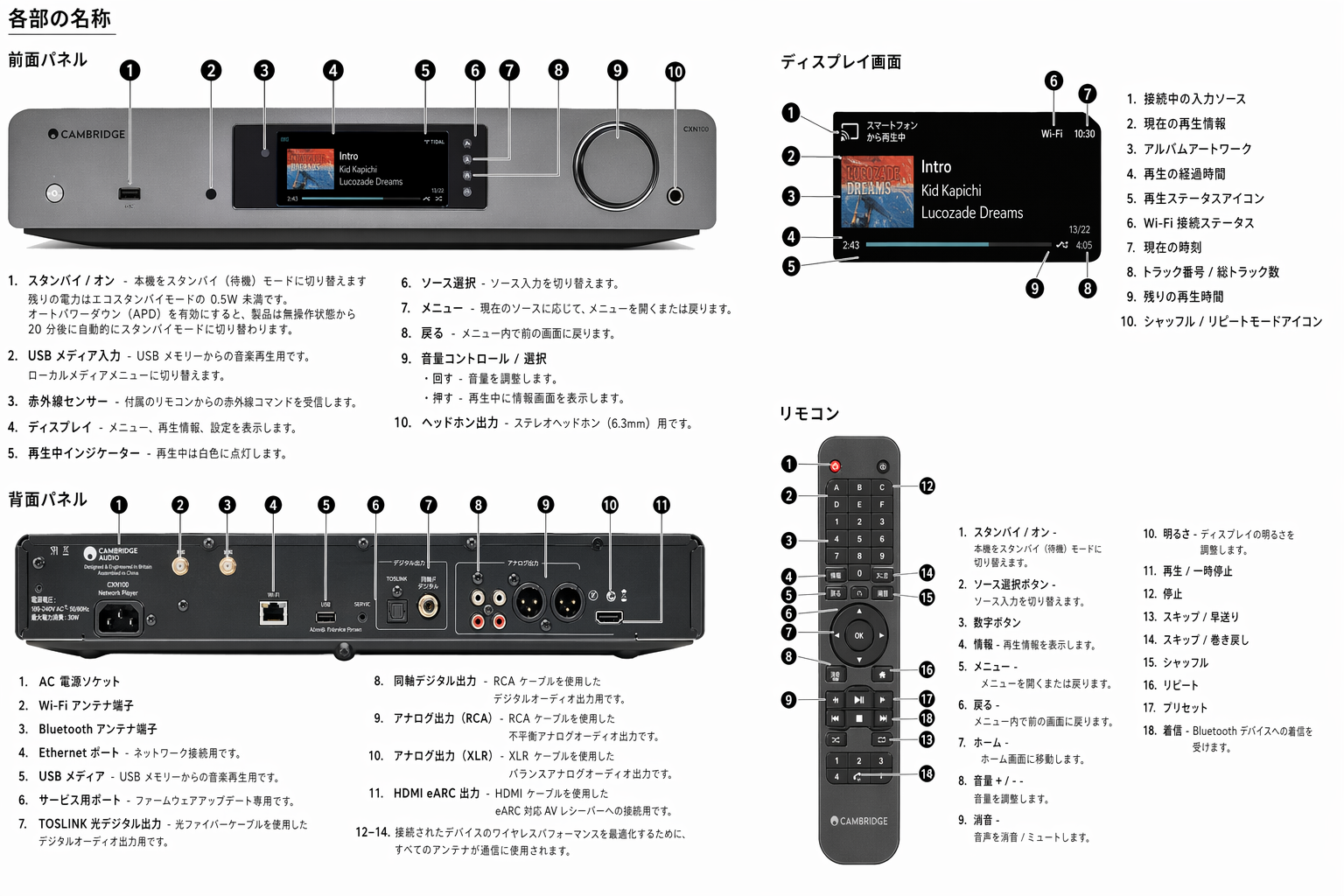
- リモコンまたはフロントパネルの Output select ボタンを押します。Press the Output select button on the remote or front panel.
- 一覧から Bluetooth デバイスを選択します。Choose your Bluetooth device from the list.
Bluetooth デバイスから音声出力を切り替えるTo switch audio away from the Bluetooth device
次のいずれかを実行してください。
either:
- Bluetooth デバイスの電源を切るか、接続を解除します。Switch off or disconnect your Bluetooth device.
または
or
- StreamMagic アプリで別の出力を選択するか、リモコンまたはフロントパネルの output select ボタンを押します。Choose a different output from either the StreamMagic app or by pressing the output select button on the remote or front panel.
注:
Notes:
- Bluetooth ソースが現在選択されている場合、Bluetooth デバイスには音声を出力できません。Audio cannot be output to a Bluetooth device if the Bluetooth source is currently selected.
- Bluetooth ヘッドフォンの音量コントロールを使用してください。Please use the volume controls on your Bluetooth headphones.
- EVO は、独自の音量コントロールを備えた Bluetooth スピーカーまたは Bluetooth ヘッドフォンにのみ接続できます。The EVO can only connect to Bluetooth speakers or headphones that have their own volume control.
MQA(Master Quality Authenticated)MQA (Master Quality Authenticated)
本機は MQA 技術を搭載しています。MQA のオーディオファイルやストリームを再生でき、オリジナルのマスター音源そのままの音を楽しめます。
Your player includes MQA technology, which enables you to play back MQA audio files and streams, delivering the sound of the original master recording.
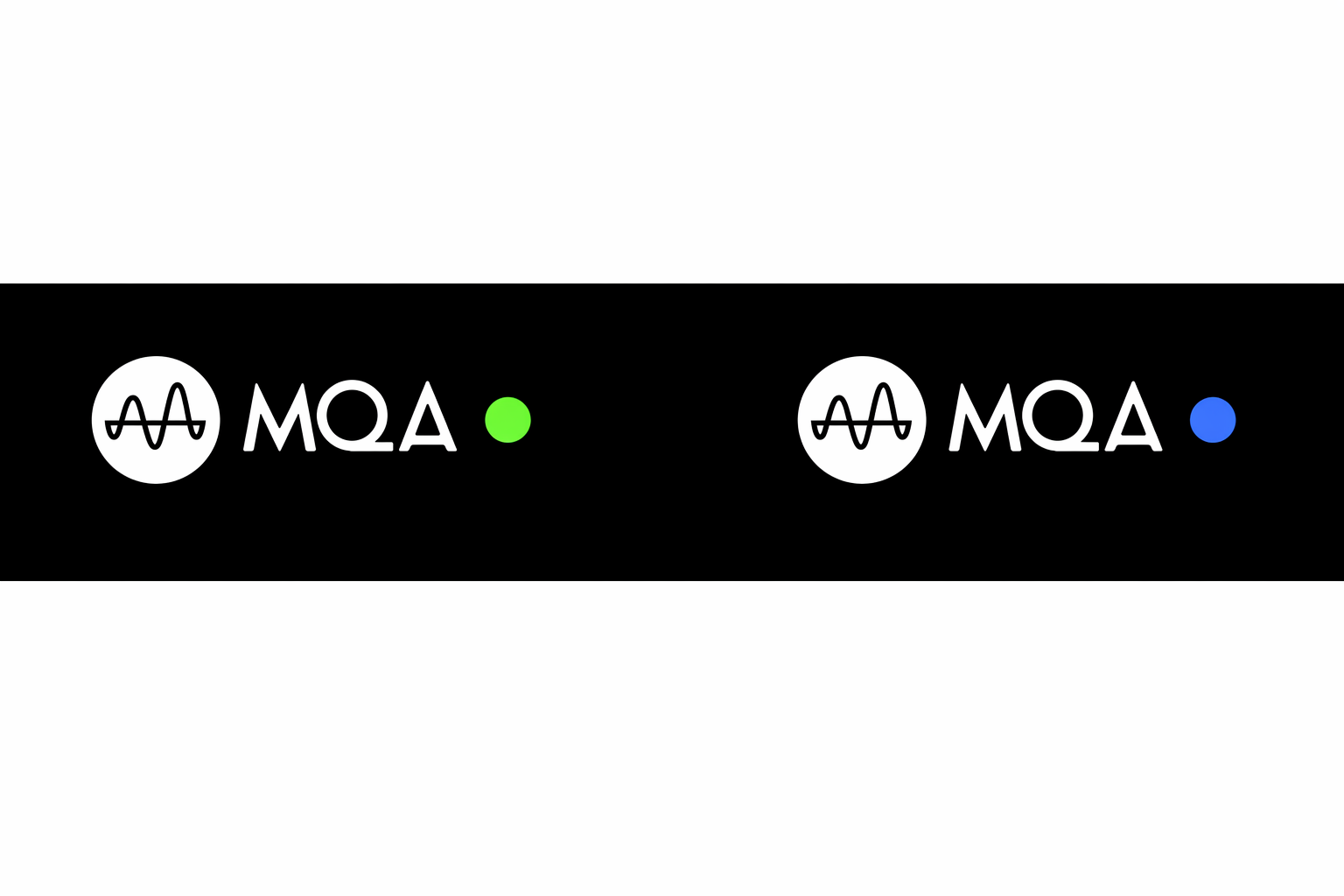
フロントパネルに MQA のグリーンまたはブルーが表示されると、本機が MQA のストリームやファイルをデコード再生していることを示します。これは音源と同一のサウンドであることを保証する来歴情報です。MQA ブルーは MQA Studio ファイルの再生時に表示されます。これはアーティスト/プロデューサーがスタジオで承認した、または著作権者が認証したファイルです。
The front panel will display MQA green or blue to indicate that the unit is decoding and playing an MQA stream or file, and denotes provenance to ensure that the sound is identical to that of the source material. It displays MQA blue to indicate it is playing an MQA Studio file, which has either been approved in the studio by the artist/producer or has been verified by the copyright owner.
設定Settings
デバイス名Device Name
StreamMagic アプリや、Spotify、Chromecast built-in、TIDAL Connect などのサービス利用時に、ホームネットワーク上で本機がどのように表示されるかを設定します。
This is how your player will appear in your StreamMagic app and on your home network when using services like Spotify, Chromecast built-in and TIDAL Connect.
プレーヤーに一意の名前を付けると、ストリーミングサービスやスマートホームサービスで見分けやすくなります。
Giving your player a unique name makes it easier to distinguish when using streaming and smart home services.
AirPlay 名AirPlay Name
AirPlay や Apple Home アプリで使用するときに表示されるプレーヤー名です。
This is how your player will appear when using AirPlay or the Apple Home app.
スタンバイモードStandby Mode
プレーヤーで使用するスタンバイモードの種類を選択します。
This selects what type of standby mode your player will use.
「ネットワークスタンバイ」では、StreamMagic アプリやその他のネットワークサービスからプレーヤーを引き続き操作できます。
Network Standby means your player will still be controllable by the StreamMagic app and other network services.
「Eco モード」を選択すると、スタンバイ時の消費電力をさらに抑えられますが、電源を入れ直すにはフロントパネルまたはリモコンを使用する必要があります。
If Eco mode is chosen your player will use even less power in standby but will need to be switched on either by the front panel or the remote control.
自動電源オフAutomatic Power Down
操作がない状態が続いたときに、プレーヤーがスタンバイに入るまでの待機時間を設定します。
This sets how long your player will wait while inactive before switching in to standby.
ディスプレイの明るさDisplay Brightness
プレーヤーのディスプレイの明るさを設定します。「Off」に設定すると、操作後に数秒間表示され、その後オフになります。
This sets the brightness of your player’s display. If set to ‘Off’ the display will show for a few seconds after any change and then switch off.
Roon Ready DSDRoon Ready DSD
Roon から DSD コンテンツを受信する方式を選択できます。
This will allow you to choose how Roon provides DSD content.
「Use DoP for digital output」 – DoP 形式のネイティブ DSD に対応している機器で使用します。
Use DoP for digital output – If your device does support native DSD in DoP format.
「Use PCM for digital output」 – ネイティブ DSD に対応していない機器で使用します。
Use PCM for digital output – If your device doesn’t support native DSD.
トーンコントロール*Tone Control*
Evo は「Great British Sound」を届けるようチューニングしています。ただし、音の好みは人それぞれであることを踏まえ、Evo の音をお好みに合わせて調整できるデジタルトーンコントロールを搭載しました。
We’ve tuned Evo to deliver Great British Sound, however we realise how personal and subjective listening can be so we’ve added a digital tone control to allow you to tailor the sound of Evo to your own preference.
音に手を加えたくない場合は、トーンコントロールを完全に無効化できます。すべての処理をバイパスし、Evo を当社がチューニングしたままの状態で再生します。
If you’d rather leave your sound untouched, you can disable the tone control completely and audio will bypass all processing, leaving Evo performing exactly as we tuned it.
注:トーンコントロールは DSD ストリームには作用せず、Bluetooth 出力にも適用されません。
Note: Tone control will not affect DSD streams and will not be present on Bluetooth output.
音量リミットVolume Limit
AirPlay、Spotify、TIDAL Connect、Chromecast built-in などのストリーミングサービスから設定できる最大音量を設定します。フロントパネル、リモコン、StreamMagic アプリの音量操作は、この設定を超えて調整できます。
This sets the maximum volume that other streaming services like AirPlay, Spotify, TIDAL Connect and Chromecast built-in can set. The front panel, remote control and StreamMagic app volume controls can override this setting.
早期アップデートEarly Update
「On」に設定すると、一般公開前の最新ファームウェアを先行して試せます。
Setting this to ‘On’ will let you try out the latest firmware ahead of general release.
詳細と新機能については、FAQ をご覧ください。
For more information and to find out what's new visit our FAQ .
ファームウェアFirmware
プレーヤー向けの新しいファームウェアを確認し、利用可能なものを適用します。
This will check for and apply any new firmware available for your player.
Info 画面からも新しいアップデートを確認し、次の手順で本機のファームウェアを手動でアップデートできます。
You can also check for new updates on the info screen and manually update the unit’s firmware by following the steps below:
- EVO のフロントパネルの「i」(Info)ボタンを長押しします。Hold down the ‘i’ (Info) button on the front panel of the EVO.
- ディスプレイの案内に従って「再生/一時停止」ボタンを押し、新しいファームウェアを確認します。利用可能な新しいファームウェアがある場合は、ここでアップデートを実行します。As instructed on the display, press the ‘play/pause’ button to check for new firmware. The new firmware version will now update if there is one available.
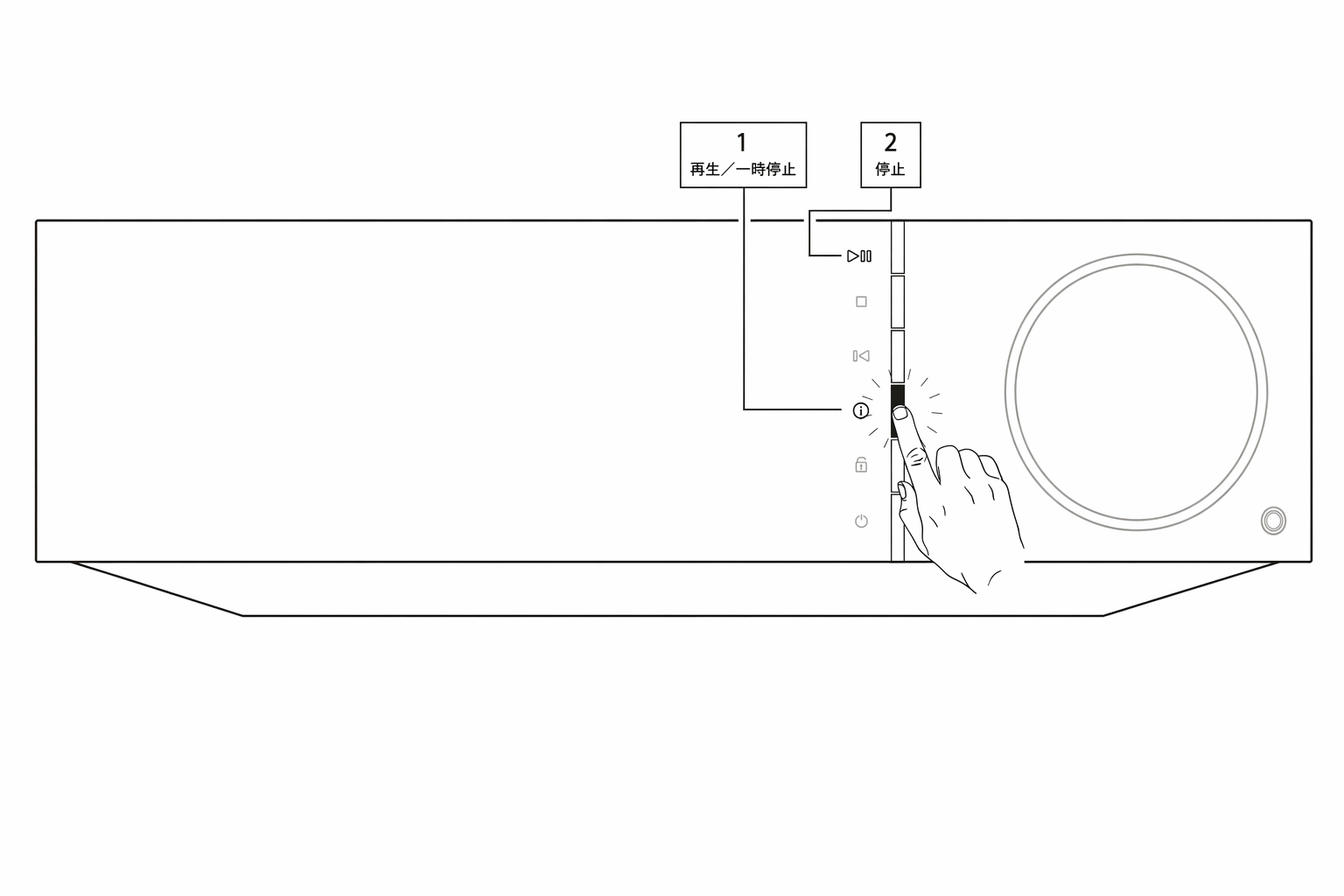
ネットワークスタンバイのまま一晩放置すると、プレーヤーが新しいアップデートを確認し、自動的に適用します。
When left in network standby overnight your player will check and apply any new updates.
注:ファームウェアアップデートを実行するには、ネットワークプレーヤーがインターネットに接続されている必要があります。最適なパフォーマンスのため、ネットワークプレーヤーは常時接続しておくことをお勧めします。
Note: Your network player must be connected to the internet to carry out firmware updates. It is recommended that you keep your network player connected to ensure optimal performance.
工場出荷時設定へのリセットFactory Reset
プレーヤーを工場出荷時の設定に戻します。
This will return your player to its factory settings.
次の手順で、Info 画面から工場出荷時設定へのリセットを実行することもできます。
You can also do this from the info screen by following the steps below:
- EVO のフロントパネルの「i」(Info)ボタンを長押しします。Hold down the ‘i’ (Info) button on the front panel of the EVO.
- ディスプレイの案内に従って「前の曲へスキップ」ボタンを長押しし、工場出荷時設定へのリセットを実行します。As instructed on the display, hold down the ‘reverse skip’ button to perform the factory reset.
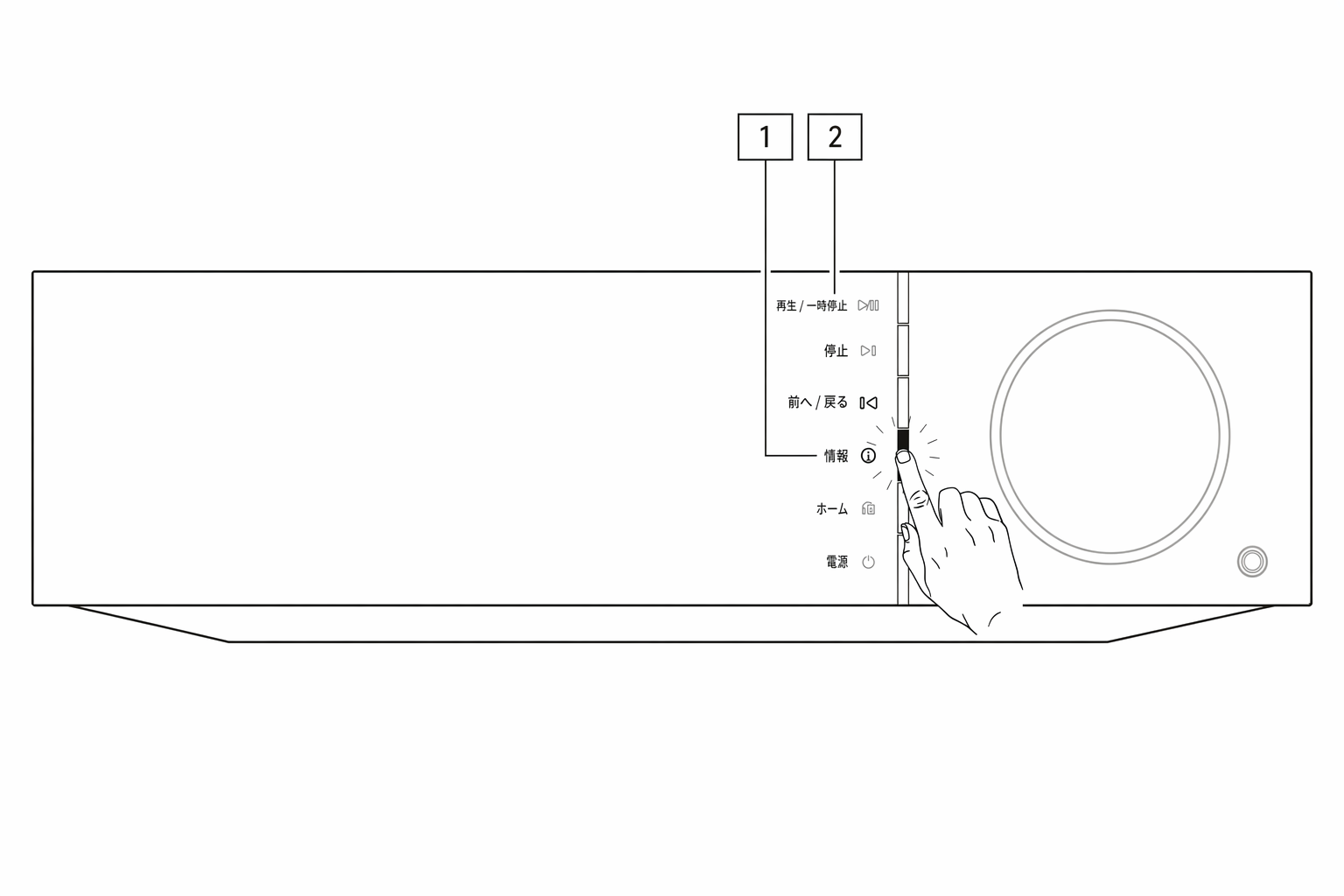
*ソフトウェアバージョン 124-a-018 以降が必要です
*Requires software version 124-a-018 or higher
Info 画面Info screen
Info 画面では、プレーヤーの有用な情報を確認できます。プレーヤーの問題を解決するための操作も実行できます。
The info screen shows useful information about your player, it also allows you to carry out some actions to help resolve problems with your player.

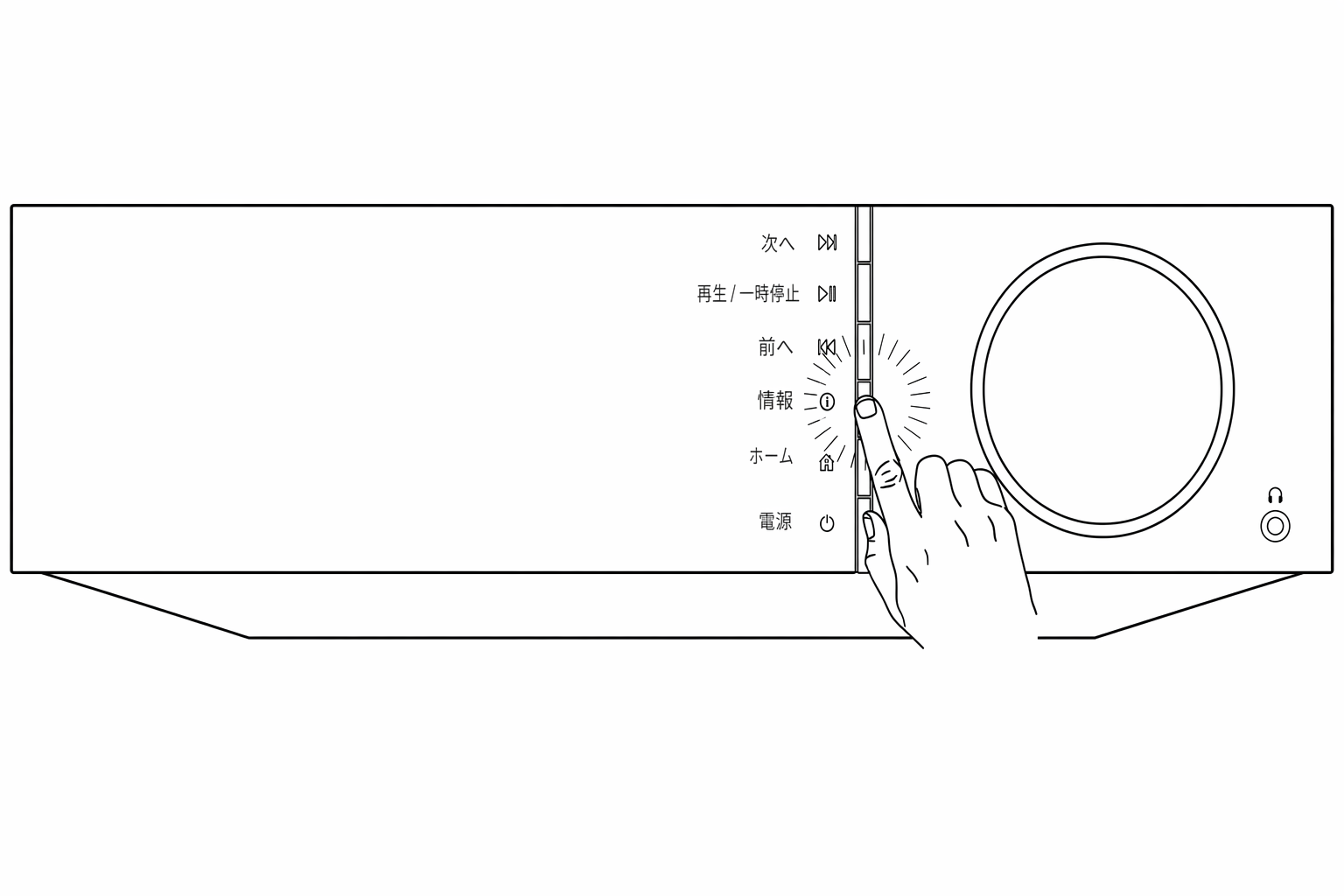
Info 画面にアクセスするには、フロントパネルのボタンを 2 秒間押し続けます。
To access the info screen hold the button on the front panel for 2 seconds
技術仕様Technical specifications
Evo 75Evo 75
出力 75W(8 Ω)
POWER OUTPUT 75W into 8 Ohms
アンプ方式 Class-D
AMPLIFICATION Class-D
DAC ESS Sabre ES9016K2M
DAC ESS Sabre ES9016K2M
周波数特性 20Hz – 20kHz ±3dB
FREQUENCY RESPONSE 20Hz –20kHz +/-3dB
アナログ音声入力 RCA × 1
ANALOGUE AUDIO INPUTS 1 x RCA
デジタル音声入力 TOSLINK 光(オプティカル)× 1、S/PDIF 同軸 × 1、Bluetooth(内蔵)、TV ARC × 1
DIGITAL AUDIO INPUTS 1 x TOSLINK optical, 1 x S/PDIF coaxial, Bluetooth (integrated), 1 x TV ARC
Bluetooth:4.2 A2DP/AVRCP(SBC、aptX、aptX HD コーデック対応)
Bluetooth: 4.2 A2DP/AVRCP supporting SBC, aptX and aptX HD codecs
互換性 TOSLINK 光:16/24bit 32-96kHz PCM のみ/S/PDIF 同軸:16/24bit 32-192kHz PCM のみ/ARC:16/24bit 32-192kHz PCM のみ
COMPATIBILITY TOSLINK optical: 16/24bit 32-96kHz PCM only S/PDIF coaxial: 16/24bit 32-192kHz PCM only ARC: 16/24bit 32-192kHz PCM only
UPnP、ローカル USB メディア、AirPlay 2、Chromecast built-in、インターネットラジオ、Spotify Connect、TIDAL、Qobuz、Deezer、Roon Ready。
UPnP, Local USB media, Airplay 2, Chromecast built-in, Internet Radio, Spotify Connect, TIDAL, Qobuz, Deezer, RoonReady.
音声フォーマット ALAC、WAV、FLAC、AIFF、DSD(x256)、WMA、MP3、AAC、HE AAC AAC+、OGG Vorbis
AUDIO FORMATS ALAC, WAV, FLAC, AIFF, DSD (x256), WMA, MP3, AAC, HE AAC AAC+, OGG Vorbis
出力 スピーカー、3.5mm ヘッドホン、プリアンプ出力、サブウーファー出力、Bluetooth(内蔵)
OUTPUTS Speakers, 3.5mm headphone, Preamp Output, Subwoofer Output, Bluetooth (integrated)
Bluetooth:4.2 A2DP/AVRCP(最大 aptX HD 対応)
Bluetooth: 4.2 A2DP/AVRCP supporting up to aptX HD
Ethernet IEEE 802.3、10 Base-T または 100 Base-T
ETHERNET IEEE 802.3, 10 Base-T or 100 Base-T
Wi-Fi デュアルバンド 2.4/5GHz
WI-FI Dual-Band 2.4/5GHz
最大消費電力 400W
MAX POWER CONSUMPTION 400W
スタンバイ時消費電力 <0.5W
STANDBY POWER CONSUMPTION <0.5W
外形寸法(W × H × D) 317 × 89 × 352 mm
DIMENSIONS (W x H x D) 317 x 89 x 352 mm
質量 5kg
WEIGHT 5Kg
Evo 150Evo 150
出力 150W(8 Ω)
POWER OUTPUT 150W into 8 Ohms
アンプ方式 Class-D
AMPLIFICATION Class-D
DAC ESS Sabre ES9018K2M
DAC ESS Sabre ES9018K2M
THD 0.0011%(1kHz、1W時、20Hz - 20kHz BW)
THD 0.0011% 1kHz at 1W, 20Hz - 20kHz BW
周波数特性 20Hz –20kHz +/-3dB S/N 比(フルパワー基準)>104dB(非重み付け)
FREQUENCY RESPONSE 20Hz –20kHz +/-3dB S/N ratio (ref full power) >104dB (unweighted)
アナログ音声入力 RCA × 1、バランス XLR × 1、MM フォノ × 1
ANALOGUE AUDIO INPUTS 1 x RCA, 1 x Balanced XLR, 1 x MM Phono
デジタル音声入力 TOSLINK 光(オプティカル)× 2、S/PDIF 同軸 × 1、Bluetooth(内蔵)、TV ARC × 1、USB Audio
DIGITAL AUDIO INPUTS 2 x TOSLINK optical, 1 x S/PDIF coaxial, Bluetooth (integrated), 1 x TV ARC, USB Audio
USB Audio:USB Type B(USB Audio Class 1 または USB Audio Class 2 準拠) Bluetooth:4.2 A2DP/AVRCP(SBC、aptX、aptX HD コーデック対応)
USB Audio: USB Type B conforming to USB Audio Class 1 or USB Audio Class 2 Bluetooth: 4.2 A2DP/AVRCP supporting SBC, aptX and aptX HD codecs
互換性 TOSLINK 光(オプティカル):16/24bit 32-96kHz PCM のみ S/PDIF 同軸:16/24bit 32-192kHz PCM のみ ARC:16/24bit 32-192kHz PCM のみ USB Audio Class 1:最大 24-bit 96kHz(非同期) USB Audio Class 2:最大 24-bit 384kHz(非同期)および最大 DSD-256 UPnP、ローカル USB メディア、AirPlay 2、Chromecast built-in、インターネットラジオ、Spotify Connect、TIDAL、Qobuz、Deezer、RoonReady。
COMPATIBILITY TOSLINK optical: 16/24bit 32-96kHz PCM only S/PDIF coaxial: 16/24bit 32-192kHz PCM only ARC: 16/24bit 32-192kHz PCM only USB Audio Class 1: Up to 24-bit 96kHz (asynchronous) USB Audio Class 2: Up to 24-bit 384kHz (asynchronous) and up to DSD-256 UPnP, Local USB media, Airplay 2, Chromecast built-in, Internet Radio, Spotify Connect, TIDAL, Qobuz, Deezer, RoonReady.
注:USB メディアの最大電流 1A
Note: USB media maximum current 1A
音声フォーマット ALAC、WAV、FLAC、AIFF、DSD(x256)、WMA、MP3、AAC、HE AAC AAC+、OGG Vorbis
AUDIO FORMATS ALAC, WAV, FLAC, AIFF, DSD (x256), WMA, MP3, AAC, HE AAC AAC+, OGG Vorbis
出力 スピーカー A+B、3.5mm ヘッドホン、プリアンプ出力、サブウーファー出力、Bluetooth(内蔵)
OUTPUTS Speakers A+B, 3.5mm headphone, Preamp Output, Subwoofer Output, Bluetooth (integrated)
Bluetooth:4.2 A2DP/AVRCP(最大 aptX HD 対応)
Bluetooth: 4.2 A2DP/AVRCP supporting up to aptX HD
Ethernet IEEE 802.3、10 Base-T または 100 Base-T
ETHERNET IEEE 802.3, 10 Base-T or 100 Base-T
Wi-Fi デュアルバンド 2.4/5GHz
WI-FI Dual-Band 2.4/5GHz
最大消費電力 700W
MAX POWER CONSUMPTION 700W
スタンバイ時消費電力 <0.5W
STANDBY POWER CONSUMPTION <0.5W
外形寸法(W × H × D) 317 × 89 × 352 mm
DIMENSIONS (W x H x D) 317 x 89 x 352 mm
質量 5.3kg
WEIGHT 5.3Kg
トラブルシューティングTroubleshooting
Evo で問題が発生した場合は、当社ウェブページ(https://supportarchive.cambridgeaudio.com/hc/en-us/sections/17766201306013-EVO-75-150)のヘルプセクションをご覧ください。
If you experience any trouble with your Evo, visit the help section on our webpage at https://supportarchive.cambridgeaudio.com/hc/en-us/sections/17766201306013-EVO-75-150
Evo をネットワークに接続できない場合は、次の手順で問題を解決できる可能性があります。• 同じネットワークを使用して、接続されているコンピューターがインターネットにアクセスできること(つまり、ウェブを閲覧できること)を確認します。• 暗号化された Wi-Fi ネットワークを使用している場合は、正しいキーまたはパスフレーズを入力したことを確認します。テキスト形式のキーでは大文字と小文字が区別されることに注意してください。
If you have trouble connecting the Evo to your network, these steps may help to resolve the problem: • Confirm that a connected computer can access the Internet (i.e. can browse the web) using the same network. • If you have an encrypted Wi-Fi network, check that you have entered the correct key or passphrase. Remember that text-format keys are case-sensitive.
Evo がネットワークに正常に接続できるにもかかわらず、特定のインターネットラジオ局を再生できない場合は、次の原因が考えられます。• その時間帯に放送局が放送していません(異なるタイムゾーンにある可能性があることに注意してください)。• 放送局が許可されている同時リスナー数の上限に達しています。• 放送局がすでに放送を終了しています。• サーバー(別の国にあることがよくあります)とお客様との間のインターネット接続が遅すぎます。
If your Evo can connect to the network successfully but is unable to play particular Internet Radio stations, it may be due to one of the following causes: • The station is not broadcasting at this time of the day (remember it may be located in a different time zone). • The station has reached the maximum allowed number of simultaneous listeners. • The station is not broadcasting anymore. • The Internet connection between the server (often located in a different country) and you is too slow.
UPnP 再生に問題がある場合は、次を確認してください。• 選択した UPnP サーバーソフトウェアが、アクセスしようとしているファイル形式の配信に対応していることを確認します。たとえば、FLAC を配信しないサーバーもあります。• Evo は DRM で保護されていないファイルのみ再生できます。DRM で保護されたファイルは Evo で再生できません。一部のサーバーでは、Microsoft PlaysForSure の認証と復号を行ってからコンテンツを Evo に配信できる場合がありますが、この操作はサーバーの機能だけに依存するため、保証されません。• 24-bit WAV または FLAC コンテンツを再生しようとする場合は、帯域幅の関係で、安定した動作のために通常は有線 Ethernet 接続が必要です。• Evo がアクセスしようとしているファイル形式の再生に対応していることを確認します。
If you have problems with UPnP playback check the following: • Ensure your chosen UPnP server software is capable of serving the file type you are trying to access. Some servers do not serve FLAC for instance. • Evo can only play non DRM files. Files that have DRM controls cannot be played by Evo. Some servers may be able to authorise and de-crypt Microsoft PlaysForSure before then serving the content to Evo, but this operation is not guaranteed as it is purely a function of the server. • If attempting to play 24-bit WAV or FLAC content a wired Ethernet connection is normally required for reliable operation due to bandwidth considerations. • Check Evo is capable of playing back the file type you are trying to access.
USB メディアの再生に問題がある場合は、次を確認してください。• Evo がアクセスしようとしているファイル形式の再生に対応していることを確認します。• USB メディアでは、Evo は DRM で保護されていないファイルのみ再生できます。DRM で保護されたファイルは再生できません。• デバイス自体を USB ソケットから給電する場合、そのデバイスが 1A を超える電流を必要としないことを確認します。• デバイスのフォーマットが Evo でサポートされていることを確認します。• USB メディアの整理方法は、Evo がコンテンツを参照する効率に影響します。アーティスト用のフォルダーを作成し、その中に各アルバムのサブフォルダーを作成して、そこにそのアルバムのトラックを入れる方法がお勧めです。1 つのフォルダーに数千曲を収録したライブラリでは、Evo のメディア参照速度が徐々に低下します。
If you have problems with USB Media playback check the following: • Check Evo is capable of playing back the file type you are trying to access. • For USB Media Evo can only play non DRM files. Files that have DRM controls cannot be played. • Check that your device does not require more than 1A if it is powered from the USB socket itself. • Check your device format is supported by Evo. • The way you organise your USB media affects how efficiently Evo can browse the content. A good practice is to create folders for Artists within which you should have subfolders for each Album which then contain the tracks for that Album. Libraries with thousands of tracks in one folder will progressively slow down Evo's media browsing.
デジタル入力に接続したテレビで、音声が途切れたり、音が乱れたり、再生が不安定になったりします。• 一部のテレビでは、デジタル入力に問題があることが確認されています。テレビを接続したデジタル入力について StreamMagic アプリで TV モードを有効にすると、テレビからの音声に問題が発生する可能性を低減できます。
A TV connected to a digital input has dropouts, glitches or disrupted audio. • Some TVs have been found to have issues on digital inputs. Enabling TV mode in the StreamMagic app for the digital input connected to a TV should reduce the chance of audio issues from the TV.
フロントパネルで MQA トラックが MQA として表示されません。• デジタル入力のいずれかを使用している場合は、TV モードが無効になっていることを確認してください。
MQA tracks do not display as MQA on the front panel. • If you are using one of the digital inputs, check that TV Mode is disabled.
電源が入りません:• AC 電源コードがしっかり接続されていることを確認します。• プラグが壁面コンセントに完全に差し込まれ、スイッチがオンになっていることを確認します。• 電源プラグまたはアダプターのヒューズを確認します。
There is no power: • Ensure the AC power cord is connected securely. • Ensure the plug is fully inserted into the wall socket and is switched on. • Check fuse in the mains plug or adaptor.
音が出ません:• 本機がスタンバイモードになっていないことを確認します。• ソース機器が正しく接続されていることを確認します。• スピーカーが正しく接続されていることを確認します。• Evo がミュートモードになっていないことを確認します。
There is no sound: • Make sure the unit is not in Standby mode. • Check that the source component is properly connected. • Check that your speakers are properly connected. • Make sure Evo is not in mute mode.
一方のチャンネルから音が出ません:• スピーカーの接続を確認します。• インターコネクトを確認します。
There is no sound on one channel: • Check speaker connections. • Check interconnects.
大きなバズ音またはハムノイズが発生します:• インターコネクトが緩んでいないか、または不良でないか確認します。
There is a loud buzz or hum: • Ensure no interconnects are loose or defective.
低音が弱い、またはステレオ音像が拡散しています:• スピーカーの配線が逆相になっていないことを確認します。
There is weak bass or diffused stereo imaging: • Ensure that speakers are not wired out of phase.
リモコンが機能しません:• 電池が切れていないことを確認します。• リモコンセンサーを遮るものがないことを確認します。
The remote handset will not function: • Check that the batteries have not expired. • Ensure that nothing is blocking the remote sensor.
安全上の注意Safety Instructions
Click here to view
よくあるご質問(FAQ)Frequently Asked Questions (FAQ)
EVO がネットワークに接続されていない場合、接続した USB HD からファイルを再生できますか?Can I play files from a connected USB HD when the EVO is not connected to a network?
これはできません。接続した USB HD からローカルファイルを再生するには、StreamMagic アプリの使用が必要です。
This is not possible as the use of the StreamMagic app is required to be able to play local files from a connected USB HD.
EVO は常にネットワークに接続しておくことを強くお勧めします。
Please note that it is strongly recommended that the EVO is connected to a network at all times.
EVO はどの USB HD に対応していますか?What USB HD’s will the EVO support?
EVO は USB メディア入力に接続した大容量ハードドライブを読み取ります。ただし、プレーヤーの USB ポートではドライブの動作に十分な電力を供給できない場合があるため、大容量ドライブの中には専用電源が必要なものがあります。
The EVO will read large capacity hard drives connected to the USB Media input. However, some larger capacity drives may require their own power supply, as the player's USB port may not provide enough power for the drive to function.
EVO は FAT32、NTFS、exFAT でフォーマットされた USB ハードドライブに対応しています。
The EVO will support USB hard drives which are formatted to FAT32, NTFS and exFAT.
EVO の主な機能はネットワークミュージックプレーヤーです。USB ポートは、USB メモリを簡単に接続するためのものです。そのため、すべての USB HDD との互換性を保証することはできません。
The primary function of the EVO is as a network music player. The USB port is intended for convenient connection of USB thumb drives. As such, we cannot guarantee compatibility with all USB HDDs.
EVO は 4Ω および 8Ω のスピーカーに対応していますか?Does the EVO support use of 4Ω and 8Ω speakers?
EVO 75 および EVO 150 は、8Ω と 4Ω の両方のスピーカーに対応しています。これらのインピーダンス定格のスピーカーを使用した場合の想定出力は次のとおりです:
The EVO 75 and EVO 150 support the use of both 8Ω and 4Ω speakers. The expected power output when using speakers with these impedance ratings are as follows:
EVO 150:
EVO 150:
150W(8 Ω)
150W into 8 Ohms
250W(4 Ω)
250W into 4 Ohms
EVO 75:
EVO 75:
75W(8 Ω)
75W into 8 Ohms
150W(4 Ω)
150W into 4 Ohms